

Before you start
Sign in to Sphinx and select your workspace. To switch workspaces later, open Settings at the bottom left and use the Workspace selector.Find your way around
Search and browse pages
- Click Browse Knowledge to open Context Pages.
- Enter a term in Search. Use All types to narrow the results by page type, then click Apply.
- Open a result to read the page. Use the pagination controls to browse more results.
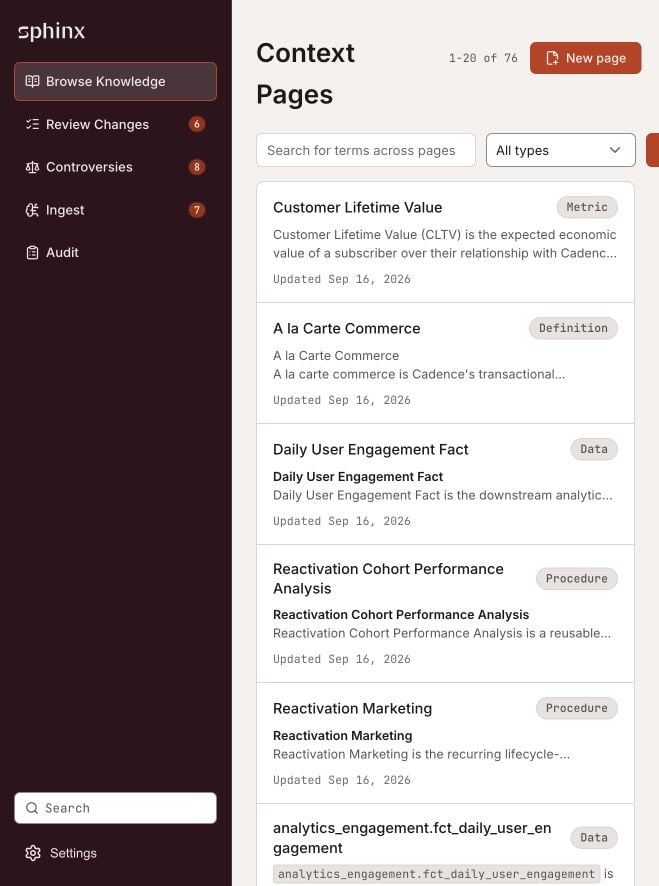
Browse Knowledge lists context pages with their type and a preview.
Read a page and follow its evidence
Use Contents to jump to a heading and Linked in this article to open related knowledge. Follow numbered citations and the page’s references to inspect the supporting sources. A page can combine several sources, so check the citation attached to the specific claim you need. When a page contains a Sphinx Controversy, read the competing claims before using either as the agreed definition. Follow Resolve Controversy to investigate it. See Resolve controversies.Keep knowledge current
For a change that needs Sphinx to reconcile information across pages, start an ingest with files or precise instructions. Review the resulting proposal before accepting it. You can also use New page from the page list or the title and body editor on a page when you have editing access. The page’s lock control lets you prevent Sphinx updates to that page; check it if an expected automated update does not appear.Next steps
Ingest and train on data and documents
Use Deep Update to add files, write instructions, and follow training progress.
Review updates
Inspect differences and accept or reject a proposal.
Resolve controversies
Decide how conflicting evidence should be represented.
Evaluate with Benchmarks
Test answers against your criteria. Beta; activation required.