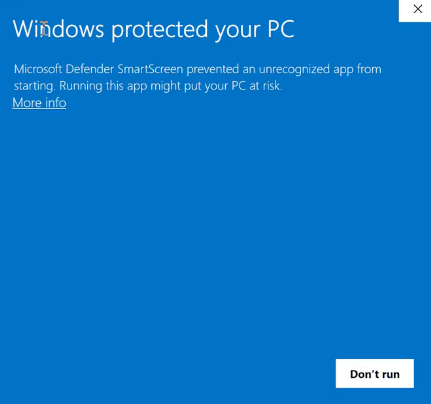
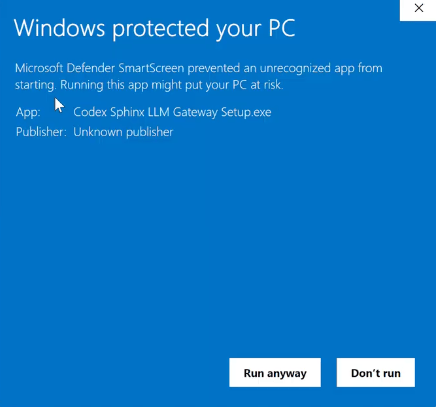
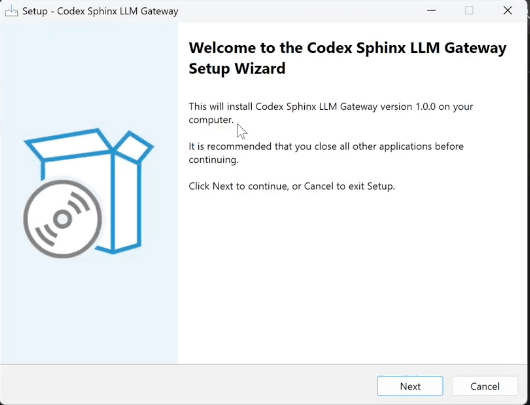
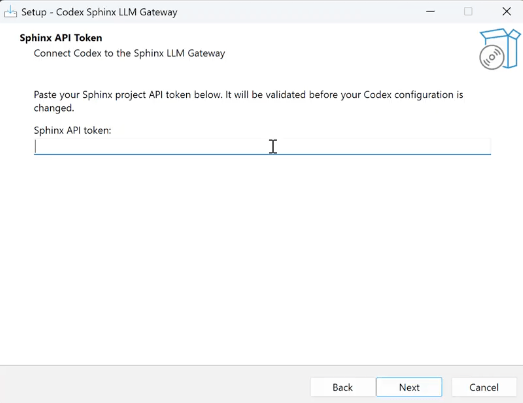
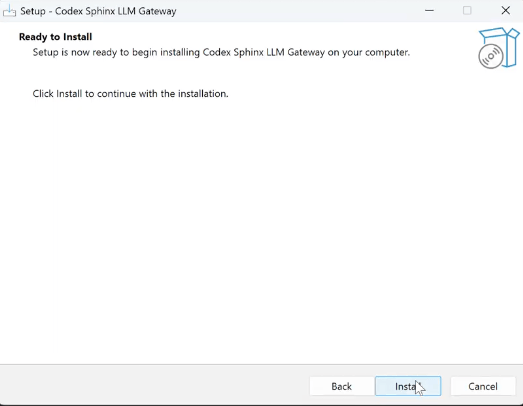
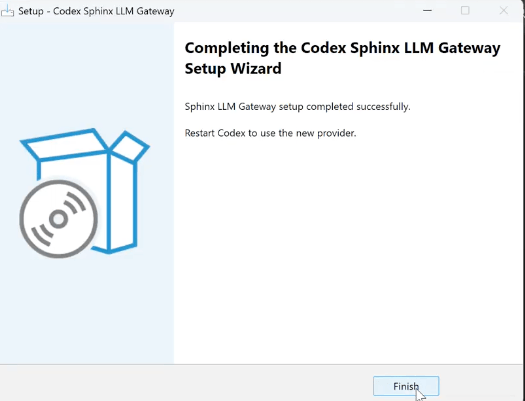
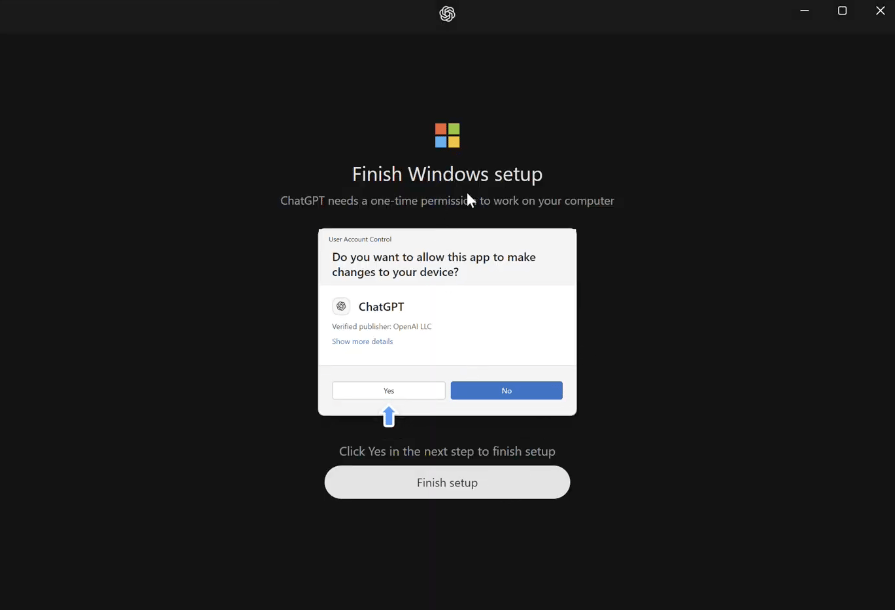
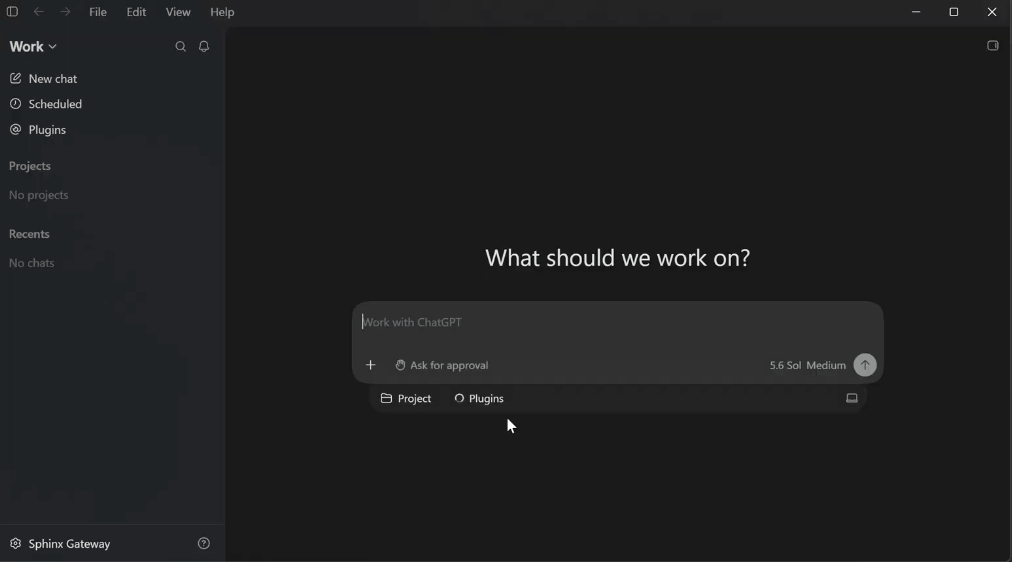
After setup, ChatGPT opens to the main chat page. Confirm that Sphinx Gateway appears in the bottom-left corner.
ChatGPT connected to the Sphinx Gateway
You can now start a chat using the Sphinx LLM Gateway.
{"docsConfig":{"theme":"aspen","$schema":"https://mintlify.com/docs.json","name":"Sphinx Docs","colors":{"primary":"#704643","light":"#ede2d6","dark":"#15803D"},"logo":{"light":"https://mintcdn.com/sphinx-977f1673/1wWAviaQrCe_7dvG/logo/sphinx.svg?fit=max\u0026auto=format\u0026n=1wWAviaQrCe_7dvG\u0026q=85\u0026s=3f3d9bb107547b1e4075269ff8505a2c","dark":"https://mintcdn.com/sphinx-977f1673/1wWAviaQrCe_7dvG/logo/sphinx.svg?fit=max\u0026auto=format\u0026n=1wWAviaQrCe_7dvG\u0026q=85\u0026s=3f3d9bb107547b1e4075269ff8505a2c"},"favicon":"https://mintcdn.com/sphinx-977f1673/1wWAviaQrCe_7dvG/logo/sphinx.svg?fit=max\u0026auto=format\u0026n=1wWAviaQrCe_7dvG\u0026q=85\u0026s=3f3d9bb107547b1e4075269ff8505a2c","navbar":{"links":[{"href":"mailto:support@sphinx.ai","label":"Support"}]},"footer":{"socials":{"x":"https://x.com/getsphinx","linkedin":"https://www.linkedin.com/company/sphinx-ml"}},"styling":{"latex":false},"navigation":{"global":{"anchors":[{"anchor":"Blog","icon":"newspaper","href":"https://www.sphinx.ai/blog/"}]},"pages":[]}},"deployment":{"deploymentMetadataValue":{"subdomain":"sphinx-977f1673","hasAudioNarration":false,"actualSubdomain":"sphinx-977f1673","customDomains":["docs.sphinx.ai"],"gitSource":{"type":"github","owner":"sphinx-ml","repo":"docs","deployBranch":"main","contentDirectory":"","isPrivate":true,"mountPath":"","label":""},"chroma":{"liveDeploymentHistoryId":"6ad126cba2e1cb429adbd9de","collectionId":"633848d7-5424-4c04-8ba5-7eb28c40bf33","schemaVersion":"v3","latestBuiltDeploymentHistoryId":"6ad126cba2e1cb429adbd9de"},"entitlements":{},"buildId":"6ad126cba2e1cb429adbd9de","clientVersion":"0.0.3939","searchFilterCounts":[{"language":"default","tag":"Documentation","count":11},{"language":"default","tag":"Setup","count":6},{"language":"default","tag":"Knowledge base","count":2},{"language":"default","tag":"Python SDK","count":2},{"language":"default","tag":"Home","count":1}]},"assistantConfig":{"enableStarterQuestions":false},"hasChatPermissions":false,"hasWebMcpPermissions":false,"toggles":[{"name":"kill-isr","enabled":true,"variant":{"name":"disabled","enabled":false,"feature_enabled":true},"impressionData":false},{"name":"agent-mintlify-slack","enabled":true,"variant":{"name":"disabled","enabled":false,"feature_enabled":true},"impressionData":false},{"name":"editor-v7-file-tree","enabled":true,"variant":{"name":"disabled","enabled":false,"feature_enabled":true},"impressionData":false},{"name":"agent-integrations-settings","enabled":true,"variant":{"name":"disabled","enabled":false,"feature_enabled":true},"impressionData":false},{"name":"automations-pr-grouping","enabled":true,"variant":{"name":"disabled","enabled":false,"feature_enabled":true},"impressionData":false},{"name":"custom-prefix","enabled":true,"variant":{"name":"disabled","enabled":false,"feature_enabled":true},"impressionData":false},{"name":"analytics-v7","enabled":true,"variant":{"name":"disabled","enabled":false,"feature_enabled":true},"impressionData":false},{"name":"user-flows-analytics","enabled":true,"variant":{"name":"disabled","enabled":false,"feature_enabled":true},"impressionData":false},{"name":"no-publish-flow","enabled":true,"variant":{"name":"disabled","enabled":false,"feature_enabled":true},"impressionData":false},{"name":"workos-onboarding","enabled":true,"variant":{"name":"disabled","enabled":false,"feature_enabled":true},"impressionData":false},{"name":"llms-txt-v2","enabled":true,"variant":{"name":"disabled","enabled":false,"feature_enabled":true},"impressionData":false},{"name":"pause-universal-search-reconcile","enabled":true,"variant":{"name":"disabled","enabled":false,"feature_enabled":true},"impressionData":false},{"name":"snapshot-serving-live","enabled":true,"variant":{"name":"disabled","enabled":false,"feature_enabled":true},"impressionData":false},{"name":"stripTemperatureMiddleware","enabled":true,"variant":{"name":"disabled","enabled":false,"feature_enabled":true},"impressionData":false},{"name":"per-site-search-delta","enabled":true,"variant":{"name":"disabled","enabled":false,"feature_enabled":true},"impressionData":false},{"name":"support-platform-pylon-zendesk","enabled":true,"variant":{"name":"disabled","enabled":false,"feature_enabled":true},"impressionData":false},{"name":"snapshot-serving","enabled":true,"variant":{"name":"disabled","enabled":false,"feature_enabled":true},"impressionData":false},{"name":"instant-rollback","enabled":true,"variant":{"name":"disabled","enabled":false,"feature_enabled":true},"impressionData":false},{"name":"granular-notifications-server","enabled":true,"variant":{"name":"disabled","enabled":false,"feature_enabled":true},"impressionData":false},{"name":"granular-notifications","enabled":true,"variant":{"name":"disabled","enabled":false,"feature_enabled":true},"impressionData":false},{"name":"editor-private-page-search","enabled":true,"variant":{"name":"disabled","enabled":false,"feature_enabled":true},"impressionData":false},{"name":"automations-fable","enabled":true,"variant":{"name":"disabled","enabled":false,"feature_enabled":true},"impressionData":false},{"name":"fixed-ai-action-pricing","enabled":true,"variant":{"name":"disabled","enabled":false,"feature_enabled":true},"impressionData":false},{"name":"automation-resolve-merge-conflict","enabled":true,"variant":{"name":"disabled","enabled":false,"feature_enabled":true},"impressionData":false},{"name":"scoped-publishing","enabled":true,"variant":{"name":"disabled","enabled":false,"feature_enabled":true},"impressionData":false},{"name":"mintql","enabled":true,"variant":{"name":"disabled","enabled":false,"feature_enabled":true},"impressionData":false},{"name":"page-level-analytics","enabled":true,"variant":{"name":"disabled","enabled":false,"feature_enabled":true},"impressionData":false},{"name":"editor-version-history-v2","enabled":true,"variant":{"name":"disabled","enabled":false,"feature_enabled":true},"impressionData":false},{"name":"editor-nav-generations","enabled":true,"variant":{"name":"disabled","enabled":false,"feature_enabled":true},"impressionData":false},{"name":"billing-page-v2","enabled":true,"variant":{"name":"disabled","enabled":false,"feature_enabled":true},"impressionData":false},{"name":"workspace-projects","enabled":true,"variant":{"name":"disabled","enabled":false,"feature_enabled":true},"impressionData":false},{"name":"assistant-v5","enabled":true,"variant":{"name":"disabled","enabled":false,"feature_enabled":true},"impressionData":false},{"name":"byok-sep-25","enabled":true,"variant":{"name":"disabled","enabled":false,"feature_enabled":true},"impressionData":false},{"name":"fork-pr-previews","enabled":true,"variant":{"name":"disabled","enabled":false,"feature_enabled":true},"impressionData":false},{"name":"revalidation-jwt","enabled":true,"variant":{"name":"disabled","enabled":false,"feature_enabled":true},"impressionData":false},{"name":"vite-origin","enabled":true,"variant":{"name":"disabled","enabled":false,"feature_enabled":true},"impressionData":false},{"name":"editor-agent-model-picker","enabled":true,"variant":{"name":"disabled","enabled":false,"feature_enabled":true},"impressionData":false},{"name":"billing-updated-9-15","enabled":true,"variant":{"name":"disabled","enabled":false,"feature_enabled":true},"impressionData":false},{"name":"hobby-abuse-scan","enabled":true,"variant":{"name":"disabled","enabled":false,"feature_enabled":true},"impressionData":false},{"name":"dashboard-inbox","enabled":true,"variant":{"name":"disabled","enabled":false,"feature_enabled":true},"impressionData":false}],"isAtlas":false,"googleFontsInlined":false},"customCss":[],"page":{"pagePath":"chatgpt-desktop/setup-llm-gateway","slug":"/chatgpt-desktop/setup-llm-gateway","pageMetadata":{"title":"Setup ChatGPT Desktop LLM Gateway","description":"Install ChatGPT for Windows and connect it to the Sphinx LLM Gateway.","href":"/chatgpt-desktop/setup-llm-gateway"},"description":{"compiledSource":"\"use strict\";\nconst {jsx: _jsx} = arguments[0];\nconst {useMDXComponents: _provideComponents} = arguments[0];\nfunction _createMdxContent(props) {\n const _components = {\n p: \"p\",\n ..._provideComponents(),\n ...props.components\n };\n return _jsx(_components.p, {\n children: \"Install ChatGPT for Windows and connect it to the Sphinx LLM Gateway.\"\n });\n}\nfunction MDXContent(props = {}) {\n const {wrapper: MDXLayout} = {\n ..._provideComponents(),\n ...props.components\n };\n return MDXLayout ? _jsx(MDXLayout, {\n ...props,\n children: _jsx(_createMdxContent, {\n ...props\n })\n }) : _createMdxContent(props);\n}\nreturn {\n default: MDXContent\n};\n","frontmatter":{},"scope":{}},"pageType":"default","mdx":{"mdxSource":{"compiledSource":"\"use strict\";const{Fragment:_Fragment,jsx:_jsx,jsxs:_jsxs}=arguments[0];const{useMDXComponents:_provideComponents}=arguments[0];function _createMdxContent(props){const _components={a:`a`,code:`code`,li:`li`,p:`p`,strong:`strong`,ul:`ul`,..._provideComponents(),...props.components},{Check,Frame,Heading,OptimizedImage,Step,Steps,Warning}=_components;if(!Check)_missingMdxReference(`Check`,true);if(!Frame)_missingMdxReference(`Frame`,true);if(!Heading)_missingMdxReference(`Heading`,true);if(!OptimizedImage)_missingMdxReference(`OptimizedImage`,true);if(!Step)_missingMdxReference(`Step`,true);if(!Steps)_missingMdxReference(`Steps`,true);if(!Warning)_missingMdxReference(`Warning`,true);return _jsxs(_Fragment,{children:[_jsx(_components.p,{children:`Connect the ChatGPT desktop app for Windows to the Sphinx LLM Gateway.`}),`\n`,_jsx(Heading,{level:`2`,id:`prerequisites`,children:`Prerequisites`}),`\n`,_jsx(_components.p,{children:`Before you begin, make sure you have:`}),`\n`,_jsxs(_components.ul,{children:[`\n`,_jsx(_components.li,{children:`A Windows computer`}),`\n`,_jsx(_components.li,{children:`Your Sphinx API token`}),`\n`,_jsx(_components.li,{children:`Permission to install applications and approve a Windows User Account Control prompt`}),`\n`]}),`\n`,_jsx(Heading,{level:`2`,id:`install-the-sphinx-llm-gateway`,children:`Install the Sphinx LLM Gateway`}),`\n`,_jsxs(Steps,{children:[_jsx(Step,{title:`Download ChatGPT for Windows`,children:_jsxs(_components.p,{children:[`Go to `,_jsx(_components.a,{href:`https://chatgpt.com/download/`,children:`chatgpt.com/download`}),` and download the ChatGPT desktop app for Windows.`]})}),_jsx(Step,{title:`Download the Sphinx LLM Gateway installer`,children:_jsxs(_components.p,{children:[`Open the `,_jsx(_components.a,{href:`https://drive.google.com/file/d/1Ru-qEO6kxqLNc1QZMBoijGhtiaZES536/view?usp=sharing`,children:`Sphinx LLM Gateway installer in Google Drive`}),`, then click `,_jsx(_components.strong,{children:`Download`}),`.`]})}),_jsx(Step,{title:`Run the gateway installer`,children:_jsxs(_components.p,{children:[`Open your downloads and double-click the downloaded `,_jsx(_components.code,{children:`.exe`}),` file.`]})}),_jsxs(Step,{title:`Allow the installer to run`,children:[_jsxs(_components.p,{children:[`If Microsoft Defender SmartScreen displays `,_jsx(_components.strong,{children:`Windows protected your PC`}),`, click `,_jsx(_components.strong,{children:`More info`}),`.`]}),_jsx(Frame,{caption:`Microsoft Defender SmartScreen warning with the More info link`,children:_jsx(OptimizedImage,{src:`https://mintcdn.com/sphinx-977f1673/vsMi2HLtxprLrDST/chatgpt-desktop/windows-protected-pc.png?fit=max\u0026auto=format\u0026n=vsMi2HLtxprLrDST\u0026q=85\u0026s=4e52fd582998a24348a6dc3439088e34`,alt:`Windows protected your PC warning showing the More info link`,\"data-og-width\":`431`,width:`431`,\"data-og-height\":`404`,height:`404`,\"data-path\":`chatgpt-desktop/windows-protected-pc.png`,\"data-optimize\":`true`,\"data-opv\":`3`,srcset:`https://mintcdn.com/sphinx-977f1673/vsMi2HLtxprLrDST/chatgpt-desktop/windows-protected-pc.png?w=280\u0026fit=max\u0026auto=format\u0026n=vsMi2HLtxprLrDST\u0026q=85\u0026s=a60c97af8b698a5487d7a591c662ca6a 280w, https://mintcdn.com/sphinx-977f1673/vsMi2HLtxprLrDST/chatgpt-desktop/windows-protected-pc.png?w=560\u0026fit=max\u0026auto=format\u0026n=vsMi2HLtxprLrDST\u0026q=85\u0026s=52b8f80ac63942708bf5cc0003b020dc 560w, https://mintcdn.com/sphinx-977f1673/vsMi2HLtxprLrDST/chatgpt-desktop/windows-protected-pc.png?w=840\u0026fit=max\u0026auto=format\u0026n=vsMi2HLtxprLrDST\u0026q=85\u0026s=51d1473899b837771f6cc122c4ca5024 840w, https://mintcdn.com/sphinx-977f1673/vsMi2HLtxprLrDST/chatgpt-desktop/windows-protected-pc.png?w=1100\u0026fit=max\u0026auto=format\u0026n=vsMi2HLtxprLrDST\u0026q=85\u0026s=3464592f31798c5f5ce6c32d5f72dcae 1100w, https://mintcdn.com/sphinx-977f1673/vsMi2HLtxprLrDST/chatgpt-desktop/windows-protected-pc.png?w=1650\u0026fit=max\u0026auto=format\u0026n=vsMi2HLtxprLrDST\u0026q=85\u0026s=12fe7a9a9d967c47a2d8c555d71efc8c 1650w, https://mintcdn.com/sphinx-977f1673/vsMi2HLtxprLrDST/chatgpt-desktop/windows-protected-pc.png?w=2500\u0026fit=max\u0026auto=format\u0026n=vsMi2HLtxprLrDST\u0026q=85\u0026s=398b16a6206355b16f5373a238ef3bd1 2500w`})}),_jsxs(_components.p,{children:[`Confirm that the app is `,_jsx(_components.strong,{children:`Codex Sphinx LLM Gateway Setup.exe`}),`, then click `,_jsx(_components.strong,{children:`Run anyway`}),`.`]}),_jsx(Frame,{caption:`Run the Codex Sphinx LLM Gateway installer`,children:_jsx(OptimizedImage,{src:`https://mintcdn.com/sphinx-977f1673/vsMi2HLtxprLrDST/chatgpt-desktop/run-anyway.png?fit=max\u0026auto=format\u0026n=vsMi2HLtxprLrDST\u0026q=85\u0026s=fd03c5276036357386a16f60f400f635`,alt:`Windows protected your PC warning showing Codex Sphinx LLM Gateway Setup.exe and the Run anyway button`,\"data-og-width\":`436`,width:`436`,\"data-og-height\":`407`,height:`407`,\"data-path\":`chatgpt-desktop/run-anyway.png`,\"data-optimize\":`true`,\"data-opv\":`3`,srcset:`https://mintcdn.com/sphinx-977f1673/vsMi2HLtxprLrDST/chatgpt-desktop/run-anyway.png?w=280\u0026fit=max\u0026auto=format\u0026n=vsMi2HLtxprLrDST\u0026q=85\u0026s=a2fb7d02ccffc7d65893ebd0fd16b2eb 280w, https://mintcdn.com/sphinx-977f1673/vsMi2HLtxprLrDST/chatgpt-desktop/run-anyway.png?w=560\u0026fit=max\u0026auto=format\u0026n=vsMi2HLtxprLrDST\u0026q=85\u0026s=9e3d2b8792e29be95903ae844c3228c4 560w, https://mintcdn.com/sphinx-977f1673/vsMi2HLtxprLrDST/chatgpt-desktop/run-anyway.png?w=840\u0026fit=max\u0026auto=format\u0026n=vsMi2HLtxprLrDST\u0026q=85\u0026s=acefc746f83ba340121edc50ceb63b96 840w, https://mintcdn.com/sphinx-977f1673/vsMi2HLtxprLrDST/chatgpt-desktop/run-anyway.png?w=1100\u0026fit=max\u0026auto=format\u0026n=vsMi2HLtxprLrDST\u0026q=85\u0026s=b43e96ffab16100c65022c7adff8aba4 1100w, https://mintcdn.com/sphinx-977f1673/vsMi2HLtxprLrDST/chatgpt-desktop/run-anyway.png?w=1650\u0026fit=max\u0026auto=format\u0026n=vsMi2HLtxprLrDST\u0026q=85\u0026s=0b9e5279b103998c52e55326897039b1 1650w, https://mintcdn.com/sphinx-977f1673/vsMi2HLtxprLrDST/chatgpt-desktop/run-anyway.png?w=2500\u0026fit=max\u0026auto=format\u0026n=vsMi2HLtxprLrDST\u0026q=85\u0026s=68d20fd865ea1d6960d5e1025895b881 2500w`})}),_jsx(Warning,{children:_jsx(_components.p,{children:`Windows may list the publisher as unknown. Continue only if you downloaded the installer from the Google Drive link above.`})})]}),_jsxs(Step,{title:`Complete the setup wizard`,children:[_jsxs(_components.p,{children:[`On the welcome screen, click `,_jsx(_components.strong,{children:`Next`}),`.`]}),_jsx(Frame,{caption:`Codex Sphinx LLM Gateway setup wizard`,children:_jsx(OptimizedImage,{src:`https://mintcdn.com/sphinx-977f1673/vsMi2HLtxprLrDST/chatgpt-desktop/gateway-setup-welcome.png?fit=max\u0026auto=format\u0026n=vsMi2HLtxprLrDST\u0026q=85\u0026s=e4eefd5bfc0ca5a4f61915fa46f8562a`,alt:`Welcome screen for the Codex Sphinx LLM Gateway setup wizard`,\"data-og-width\":`530`,width:`530`,\"data-og-height\":`405`,height:`405`,\"data-path\":`chatgpt-desktop/gateway-setup-welcome.png`,\"data-optimize\":`true`,\"data-opv\":`3`,srcset:`https://mintcdn.com/sphinx-977f1673/vsMi2HLtxprLrDST/chatgpt-desktop/gateway-setup-welcome.png?w=280\u0026fit=max\u0026auto=format\u0026n=vsMi2HLtxprLrDST\u0026q=85\u0026s=97d421587e787fa71c5260c11653145a 280w, https://mintcdn.com/sphinx-977f1673/vsMi2HLtxprLrDST/chatgpt-desktop/gateway-setup-welcome.png?w=560\u0026fit=max\u0026auto=format\u0026n=vsMi2HLtxprLrDST\u0026q=85\u0026s=6012b35fd4be3c4bf5693d17ec0760cb 560w, https://mintcdn.com/sphinx-977f1673/vsMi2HLtxprLrDST/chatgpt-desktop/gateway-setup-welcome.png?w=840\u0026fit=max\u0026auto=format\u0026n=vsMi2HLtxprLrDST\u0026q=85\u0026s=629cb079e663d955fd95414496d74e6a 840w, https://mintcdn.com/sphinx-977f1673/vsMi2HLtxprLrDST/chatgpt-desktop/gateway-setup-welcome.png?w=1100\u0026fit=max\u0026auto=format\u0026n=vsMi2HLtxprLrDST\u0026q=85\u0026s=2ad236ceebd1cc52b88406fcf0d1f5dd 1100w, https://mintcdn.com/sphinx-977f1673/vsMi2HLtxprLrDST/chatgpt-desktop/gateway-setup-welcome.png?w=1650\u0026fit=max\u0026auto=format\u0026n=vsMi2HLtxprLrDST\u0026q=85\u0026s=69001945f9d94a6ba1d25241fc642939 1650w, https://mintcdn.com/sphinx-977f1673/vsMi2HLtxprLrDST/chatgpt-desktop/gateway-setup-welcome.png?w=2500\u0026fit=max\u0026auto=format\u0026n=vsMi2HLtxprLrDST\u0026q=85\u0026s=8af5ad59fed4e6f7254bc83f0b8ddb77 2500w`})}),_jsxs(_components.p,{children:[`Enter your Sphinx API token, then click `,_jsx(_components.strong,{children:`Next`}),`.`]}),_jsx(Frame,{caption:`Enter your Sphinx API token`,children:_jsx(OptimizedImage,{src:`https://mintcdn.com/sphinx-977f1673/vsMi2HLtxprLrDST/chatgpt-desktop/enter-api-token.png?fit=max\u0026auto=format\u0026n=vsMi2HLtxprLrDST\u0026q=85\u0026s=a409ac67ccb694fdf4802c225b7b50be`,alt:`Codex Sphinx LLM Gateway setup wizard with a field for the Sphinx API token`,\"data-og-width\":`523`,width:`523`,\"data-og-height\":`403`,height:`403`,\"data-path\":`chatgpt-desktop/enter-api-token.png`,\"data-optimize\":`true`,\"data-opv\":`3`,srcset:`https://mintcdn.com/sphinx-977f1673/vsMi2HLtxprLrDST/chatgpt-desktop/enter-api-token.png?w=280\u0026fit=max\u0026auto=format\u0026n=vsMi2HLtxprLrDST\u0026q=85\u0026s=005533c5a7d36202051bcc41327d8441 280w, https://mintcdn.com/sphinx-977f1673/vsMi2HLtxprLrDST/chatgpt-desktop/enter-api-token.png?w=560\u0026fit=max\u0026auto=format\u0026n=vsMi2HLtxprLrDST\u0026q=85\u0026s=25b93022493810bd87d479d7e903acfc 560w, https://mintcdn.com/sphinx-977f1673/vsMi2HLtxprLrDST/chatgpt-desktop/enter-api-token.png?w=840\u0026fit=max\u0026auto=format\u0026n=vsMi2HLtxprLrDST\u0026q=85\u0026s=cde1e2074c5d98f89655739c8802ee54 840w, https://mintcdn.com/sphinx-977f1673/vsMi2HLtxprLrDST/chatgpt-desktop/enter-api-token.png?w=1100\u0026fit=max\u0026auto=format\u0026n=vsMi2HLtxprLrDST\u0026q=85\u0026s=c3fd6b75afaf4a15dcb588e057489f15 1100w, https://mintcdn.com/sphinx-977f1673/vsMi2HLtxprLrDST/chatgpt-desktop/enter-api-token.png?w=1650\u0026fit=max\u0026auto=format\u0026n=vsMi2HLtxprLrDST\u0026q=85\u0026s=f0bbe65cad7e344c43cde70147343c47 1650w, https://mintcdn.com/sphinx-977f1673/vsMi2HLtxprLrDST/chatgpt-desktop/enter-api-token.png?w=2500\u0026fit=max\u0026auto=format\u0026n=vsMi2HLtxprLrDST\u0026q=85\u0026s=4201a782639dbfe1c3eb68b630958485 2500w`})}),_jsxs(_components.p,{children:[`When the installer is ready, click `,_jsx(_components.strong,{children:`Install`}),`.`]}),_jsx(Frame,{caption:`Install the Codex Sphinx LLM Gateway`,children:_jsx(OptimizedImage,{src:`https://mintcdn.com/sphinx-977f1673/vsMi2HLtxprLrDST/chatgpt-desktop/ready-to-install.png?fit=max\u0026auto=format\u0026n=vsMi2HLtxprLrDST\u0026q=85\u0026s=cd98a7d75549942efba720e23766557d`,alt:`Codex Sphinx LLM Gateway setup wizard showing the Install button`,\"data-og-width\":`523`,width:`523`,\"data-og-height\":`406`,height:`406`,\"data-path\":`chatgpt-desktop/ready-to-install.png`,\"data-optimize\":`true`,\"data-opv\":`3`,srcset:`https://mintcdn.com/sphinx-977f1673/vsMi2HLtxprLrDST/chatgpt-desktop/ready-to-install.png?w=280\u0026fit=max\u0026auto=format\u0026n=vsMi2HLtxprLrDST\u0026q=85\u0026s=d77ea8b16b03158cd6eaa269440816c5 280w, https://mintcdn.com/sphinx-977f1673/vsMi2HLtxprLrDST/chatgpt-desktop/ready-to-install.png?w=560\u0026fit=max\u0026auto=format\u0026n=vsMi2HLtxprLrDST\u0026q=85\u0026s=3c741ea96543d2c2e213ad6b53ba4e7f 560w, https://mintcdn.com/sphinx-977f1673/vsMi2HLtxprLrDST/chatgpt-desktop/ready-to-install.png?w=840\u0026fit=max\u0026auto=format\u0026n=vsMi2HLtxprLrDST\u0026q=85\u0026s=d6c9ddb00cd8c5b1afd6a05b8021a6c4 840w, https://mintcdn.com/sphinx-977f1673/vsMi2HLtxprLrDST/chatgpt-desktop/ready-to-install.png?w=1100\u0026fit=max\u0026auto=format\u0026n=vsMi2HLtxprLrDST\u0026q=85\u0026s=a07c3e70996204a1e44b72282f6b57d8 1100w, https://mintcdn.com/sphinx-977f1673/vsMi2HLtxprLrDST/chatgpt-desktop/ready-to-install.png?w=1650\u0026fit=max\u0026auto=format\u0026n=vsMi2HLtxprLrDST\u0026q=85\u0026s=39835f86e23a179ebd4f1d93c7e0ae2c 1650w, https://mintcdn.com/sphinx-977f1673/vsMi2HLtxprLrDST/chatgpt-desktop/ready-to-install.png?w=2500\u0026fit=max\u0026auto=format\u0026n=vsMi2HLtxprLrDST\u0026q=85\u0026s=b48837c308ed5abb2d64e11d1e4fba6e 2500w`})}),_jsxs(_components.p,{children:[`After the installation completes, click `,_jsx(_components.strong,{children:`Finish`}),`.`]}),_jsx(Frame,{caption:`Complete the Codex Sphinx LLM Gateway setup wizard`,children:_jsx(OptimizedImage,{src:`https://mintcdn.com/sphinx-977f1673/vsMi2HLtxprLrDST/chatgpt-desktop/setup-complete.png?fit=max\u0026auto=format\u0026n=vsMi2HLtxprLrDST\u0026q=85\u0026s=fd404788bc5cfdb06c61e1be435eaa08`,alt:`Successful Codex Sphinx LLM Gateway installation with the Finish button`,\"data-og-width\":`525`,width:`525`,\"data-og-height\":`401`,height:`401`,\"data-path\":`chatgpt-desktop/setup-complete.png`,\"data-optimize\":`true`,\"data-opv\":`3`,srcset:`https://mintcdn.com/sphinx-977f1673/vsMi2HLtxprLrDST/chatgpt-desktop/setup-complete.png?w=280\u0026fit=max\u0026auto=format\u0026n=vsMi2HLtxprLrDST\u0026q=85\u0026s=01d72d5cbc00117b92f5ba678aba96a4 280w, https://mintcdn.com/sphinx-977f1673/vsMi2HLtxprLrDST/chatgpt-desktop/setup-complete.png?w=560\u0026fit=max\u0026auto=format\u0026n=vsMi2HLtxprLrDST\u0026q=85\u0026s=3208c77c29c1a1eee59f37fae3ccf3f5 560w, https://mintcdn.com/sphinx-977f1673/vsMi2HLtxprLrDST/chatgpt-desktop/setup-complete.png?w=840\u0026fit=max\u0026auto=format\u0026n=vsMi2HLtxprLrDST\u0026q=85\u0026s=70e196f61cce377843f2b917918bc3e8 840w, https://mintcdn.com/sphinx-977f1673/vsMi2HLtxprLrDST/chatgpt-desktop/setup-complete.png?w=1100\u0026fit=max\u0026auto=format\u0026n=vsMi2HLtxprLrDST\u0026q=85\u0026s=c4d5105295a2ec8e6fd2437ac881a415 1100w, https://mintcdn.com/sphinx-977f1673/vsMi2HLtxprLrDST/chatgpt-desktop/setup-complete.png?w=1650\u0026fit=max\u0026auto=format\u0026n=vsMi2HLtxprLrDST\u0026q=85\u0026s=c89a82311bf40874cd33531315f3d33d 1650w, https://mintcdn.com/sphinx-977f1673/vsMi2HLtxprLrDST/chatgpt-desktop/setup-complete.png?w=2500\u0026fit=max\u0026auto=format\u0026n=vsMi2HLtxprLrDST\u0026q=85\u0026s=f8b9d5afb3d9720a5f1a4924de4f27d2 2500w`})}),_jsx(Warning,{children:_jsx(_components.p,{children:`Keep your API token private. Do not share it or include it in screenshots.`})})]}),_jsx(Step,{title:`Start ChatGPT`,children:_jsx(_components.p,{children:`Launch the ChatGPT desktop app and complete the introductory prompts.`})}),_jsxs(Step,{title:`Finish Windows setup`,children:[_jsxs(_components.p,{children:[`When ChatGPT asks for one-time permission to work on your computer, click `,_jsx(_components.strong,{children:`Finish setup`}),`. In the Windows User Account Control prompt, click `,_jsx(_components.strong,{children:`Yes`}),`.`]}),_jsx(Frame,{caption:`Grant ChatGPT one-time permission to finish Windows setup`,children:_jsx(OptimizedImage,{src:`https://mintcdn.com/sphinx-977f1673/vsMi2HLtxprLrDST/chatgpt-desktop/finish-windows-setup.png?fit=max\u0026auto=format\u0026n=vsMi2HLtxprLrDST\u0026q=85\u0026s=83916581cb0db0ed42eaae1e7a8fe56e`,alt:`ChatGPT Finish Windows setup screen with a User Account Control prompt and instructions to click Yes`,\"data-og-width\":`895`,width:`895`,\"data-og-height\":`610`,height:`610`,\"data-path\":`chatgpt-desktop/finish-windows-setup.png`,\"data-optimize\":`true`,\"data-opv\":`3`,srcset:`https://mintcdn.com/sphinx-977f1673/vsMi2HLtxprLrDST/chatgpt-desktop/finish-windows-setup.png?w=280\u0026fit=max\u0026auto=format\u0026n=vsMi2HLtxprLrDST\u0026q=85\u0026s=42ea976f697bc5f647a7e12a329122aa 280w, https://mintcdn.com/sphinx-977f1673/vsMi2HLtxprLrDST/chatgpt-desktop/finish-windows-setup.png?w=560\u0026fit=max\u0026auto=format\u0026n=vsMi2HLtxprLrDST\u0026q=85\u0026s=8f587799ee0cf168509095439a1bd411 560w, https://mintcdn.com/sphinx-977f1673/vsMi2HLtxprLrDST/chatgpt-desktop/finish-windows-setup.png?w=840\u0026fit=max\u0026auto=format\u0026n=vsMi2HLtxprLrDST\u0026q=85\u0026s=22ddd8c8efd8d51cc36d29b03795b215 840w, https://mintcdn.com/sphinx-977f1673/vsMi2HLtxprLrDST/chatgpt-desktop/finish-windows-setup.png?w=1100\u0026fit=max\u0026auto=format\u0026n=vsMi2HLtxprLrDST\u0026q=85\u0026s=d41781a41c64471a20047360c6f7fc75 1100w, https://mintcdn.com/sphinx-977f1673/vsMi2HLtxprLrDST/chatgpt-desktop/finish-windows-setup.png?w=1650\u0026fit=max\u0026auto=format\u0026n=vsMi2HLtxprLrDST\u0026q=85\u0026s=c220ca825f9947fb03c776abb4768e60 1650w, https://mintcdn.com/sphinx-977f1673/vsMi2HLtxprLrDST/chatgpt-desktop/finish-windows-setup.png?w=2500\u0026fit=max\u0026auto=format\u0026n=vsMi2HLtxprLrDST\u0026q=85\u0026s=4d03b44fd5060b868f7a1f45c880c1ad 2500w`})})]})]}),`\n`,_jsx(Heading,{level:`2`,id:`verify-the-connection`,children:`Verify the connection`}),`\n`,_jsxs(_components.p,{children:[`After setup, ChatGPT opens to the main chat page. Confirm that `,_jsx(_components.strong,{children:`Sphinx Gateway`}),` appears in the bottom-left corner.`]}),`\n`,_jsx(Frame,{caption:`ChatGPT connected to the Sphinx Gateway`,children:_jsx(OptimizedImage,{src:`https://mintcdn.com/sphinx-977f1673/vsMi2HLtxprLrDST/chatgpt-desktop/sphinx-gateway-chat.png?fit=max\u0026auto=format\u0026n=vsMi2HLtxprLrDST\u0026q=85\u0026s=f182579524c0aed6d05868c0b490784d`,alt:`ChatGPT main chat page showing Sphinx Gateway in the bottom-left corner`,\"data-og-width\":`1012`,width:`1012`,\"data-og-height\":`562`,height:`562`,\"data-path\":`chatgpt-desktop/sphinx-gateway-chat.png`,\"data-optimize\":`true`,\"data-opv\":`3`,srcset:`https://mintcdn.com/sphinx-977f1673/vsMi2HLtxprLrDST/chatgpt-desktop/sphinx-gateway-chat.png?w=280\u0026fit=max\u0026auto=format\u0026n=vsMi2HLtxprLrDST\u0026q=85\u0026s=b5e744915a8dbea915599a3d31d67152 280w, https://mintcdn.com/sphinx-977f1673/vsMi2HLtxprLrDST/chatgpt-desktop/sphinx-gateway-chat.png?w=560\u0026fit=max\u0026auto=format\u0026n=vsMi2HLtxprLrDST\u0026q=85\u0026s=aadb39c72200ff871d95423c961d102f 560w, https://mintcdn.com/sphinx-977f1673/vsMi2HLtxprLrDST/chatgpt-desktop/sphinx-gateway-chat.png?w=840\u0026fit=max\u0026auto=format\u0026n=vsMi2HLtxprLrDST\u0026q=85\u0026s=37607f66cf95bb9d4f88d85451866f56 840w, https://mintcdn.com/sphinx-977f1673/vsMi2HLtxprLrDST/chatgpt-desktop/sphinx-gateway-chat.png?w=1100\u0026fit=max\u0026auto=format\u0026n=vsMi2HLtxprLrDST\u0026q=85\u0026s=33a9bf1c98e3bfe8b6edda09ad2c59dd 1100w, https://mintcdn.com/sphinx-977f1673/vsMi2HLtxprLrDST/chatgpt-desktop/sphinx-gateway-chat.png?w=1650\u0026fit=max\u0026auto=format\u0026n=vsMi2HLtxprLrDST\u0026q=85\u0026s=68fcd699a022b8b094f3ad64a60cd53a 1650w, https://mintcdn.com/sphinx-977f1673/vsMi2HLtxprLrDST/chatgpt-desktop/sphinx-gateway-chat.png?w=2500\u0026fit=max\u0026auto=format\u0026n=vsMi2HLtxprLrDST\u0026q=85\u0026s=4f78c0ff4ee71d279aad3c66bf150f48 2500w`})}),`\n`,_jsx(Check,{children:_jsx(_components.p,{children:`You can now start a chat using the Sphinx LLM Gateway.`})})]})}function MDXContent(props={}){const{wrapper:MDXLayout}={..._provideComponents(),...props.components};return MDXLayout?_jsx(MDXLayout,{...props,children:_jsx(_createMdxContent,{...props})}):_createMdxContent(props)}return{default:MDXContent};function _missingMdxReference(id,component){throw new Error(`Expected `+(component?`component`:`object`)+\" `\"+id+\"` to be defined: you likely forgot to import, pass, or provide it.\")}","frontmatter":{},"scope":{"config":{},"pageMetadata":{"title":"Setup ChatGPT Desktop LLM Gateway","description":"Install ChatGPT for Windows and connect it to the Sphinx LLM Gateway.","href":"/chatgpt-desktop/setup-llm-gateway"}}},"mdxSourceWithNoJs":null},"mdxExtracts":{"tableOfContents":[{"title":"Prerequisites","slug":"prerequisites","depth":2,"children":[]},{"title":"Install the Sphinx LLM Gateway","slug":"install-the-sphinx-llm-gateway","depth":2,"children":[]},{"title":"Verify the connection","slug":"verify-the-connection","depth":2,"children":[]}],"codeExamples":{}},"jsLinks":[],"subdomain":"sphinx-977f1673","siteName":"Sphinx Docs","title":"Setup ChatGPT Desktop LLM Gateway - Sphinx Docs","navMaps":{"firstHrefInVersion":{},"firstHrefInLanguage":{}},"lastModified":"2026-08-27T21:22:06.716Z","originalFileLocation":"chatgpt-desktop/setup-llm-gateway.mdx"},"headHtml":"\u003cscript data-mint-head>(function(){var d=document.documentElement,p=null;if(!p){try{p=localStorage.getItem(\"isDarkMode\")}catch(e){}if(p==='true')p='dark';else if(p==='false')p='light';if(p!=='light'\u0026\u0026p!=='dark'\u0026\u0026p!=='system')p=\"system\"}var r=p==='system'?(matchMedia(\"(prefers-color-scheme: dark)\").matches?'dark':'light'):p;d.classList.remove(r==='dark'?'light':'dark');d.classList.add(r);d.setAttribute(\"data-theme-preference\",p)})();\u003c/script>\u003cmeta data-mint-head name=\"description\" content=\"Install ChatGPT for Windows and connect it to the Sphinx LLM Gateway.\">\u003cmeta data-mint-head name=\"application-name\" content=\"Sphinx Docs\">\u003cmeta data-mint-head name=\"generator\" content=\"Mintlify\">\u003clink data-mint-head rel=\"icon\" type=\"image/png\" sizes=\"192x192\" href=\"/mintlify-assets/_mintlify/favicons/sphinx-977f1673/8idukxGllAmRhGRj/_generated/favicon/android-chrome-192x192.png\" media=\"(prefers-color-scheme: light)\">\u003clink data-mint-head rel=\"apple-touch-icon\" type=\"image/png\" sizes=\"180x180\" href=\"/mintlify-assets/_mintlify/favicons/sphinx-977f1673/8idukxGllAmRhGRj/_generated/favicon/apple-touch-icon.png\">\u003clink data-mint-head rel=\"icon\" type=\"image/png\" sizes=\"16x16\" href=\"/mintlify-assets/_mintlify/favicons/sphinx-977f1673/8idukxGllAmRhGRj/_generated/favicon/favicon-16x16.png\" media=\"(prefers-color-scheme: light)\">\u003clink data-mint-head rel=\"icon\" type=\"image/png\" sizes=\"32x32\" href=\"/mintlify-assets/_mintlify/favicons/sphinx-977f1673/8idukxGllAmRhGRj/_generated/favicon/favicon-32x32.png\" media=\"(prefers-color-scheme: light)\">\u003clink data-mint-head rel=\"shortcut icon\" type=\"image/x-icon\" href=\"/mintlify-assets/_mintlify/favicons/sphinx-977f1673/8idukxGllAmRhGRj/_generated/favicon/favicon.ico\" media=\"(prefers-color-scheme: light)\">\u003clink data-mint-head rel=\"icon\" type=\"image/png\" sizes=\"192x192\" href=\"/mintlify-assets/_mintlify/favicons/sphinx-977f1673/8idukxGllAmRhGRj/_generated/favicon-dark/android-chrome-192x192.png\" media=\"(prefers-color-scheme: dark)\">\u003clink data-mint-head rel=\"icon\" type=\"image/png\" sizes=\"16x16\" href=\"/mintlify-assets/_mintlify/favicons/sphinx-977f1673/8idukxGllAmRhGRj/_generated/favicon-dark/favicon-16x16.png\" media=\"(prefers-color-scheme: dark)\">\u003clink data-mint-head rel=\"icon\" type=\"image/png\" sizes=\"32x32\" href=\"/mintlify-assets/_mintlify/favicons/sphinx-977f1673/8idukxGllAmRhGRj/_generated/favicon-dark/favicon-32x32.png\" media=\"(prefers-color-scheme: dark)\">\u003clink data-mint-head rel=\"shortcut icon\" type=\"image/x-icon\" href=\"/mintlify-assets/_mintlify/favicons/sphinx-977f1673/8idukxGllAmRhGRj/_generated/favicon-dark/favicon.ico\" media=\"(prefers-color-scheme: dark)\">\u003cmeta data-mint-head property=\"og:title\" content=\"Setup ChatGPT Desktop LLM Gateway - Sphinx Docs\">\u003cmeta data-mint-head property=\"og:description\" content=\"Install ChatGPT for Windows and connect it to the Sphinx LLM Gateway.\">\u003cmeta data-mint-head property=\"og:site_name\" content=\"Sphinx Docs\">\u003cmeta data-mint-head property=\"og:url\" content=\"https://docs.sphinx.ai/chatgpt-desktop/setup-llm-gateway\">\u003cmeta data-mint-head property=\"og:type\" content=\"website\">\u003cmeta data-mint-head property=\"og:image\" content=\"https://sphinx-977f1673.mintlify.app/_mintlify/api/og/v2?division=Setup\u0026amp;title=Setup+ChatGPT+Desktop+LLM+Gateway\u0026amp;description=Install+ChatGPT+for+Windows+and+connect+it+to+the+Sphinx+LLM+Gateway.\u0026amp;theme=6304f5ecaf4e5e100352fea1\u0026amp;signature=6ac0db0e86167ec162f65f63ace786808fac328fc4d0be8ba171bc8cf758026f\">\u003cmeta data-mint-head property=\"og:image:width\" content=\"1200\">\u003cmeta data-mint-head property=\"og:image:height\" content=\"630\">\u003cmeta data-mint-head name=\"twitter:card\" content=\"summary_large_image\">\u003cmeta data-mint-head name=\"twitter:title\" content=\"Setup ChatGPT Desktop LLM Gateway - Sphinx Docs\">\u003cmeta data-mint-head name=\"twitter:description\" content=\"Install ChatGPT for Windows and connect it to the Sphinx LLM Gateway.\">\u003cmeta data-mint-head name=\"twitter:image\" content=\"https://sphinx-977f1673.mintlify.app/_mintlify/api/og/v2?division=Setup\u0026amp;title=Setup+ChatGPT+Desktop+LLM+Gateway\u0026amp;description=Install+ChatGPT+for+Windows+and+connect+it+to+the+Sphinx+LLM+Gateway.\u0026amp;theme=6304f5ecaf4e5e100352fea1\u0026amp;signature=6ac0db0e86167ec162f65f63ace786808fac328fc4d0be8ba171bc8cf758026f\">\u003cmeta data-mint-head name=\"twitter:image:width\" content=\"1200\">\u003cmeta data-mint-head name=\"twitter:image:height\" content=\"630\">\u003cmeta data-mint-head name=\"msapplication-config\" content=\"/mintlify-assets/_mintlify/favicons/sphinx-977f1673/8idukxGllAmRhGRj/_generated/favicon/browserconfig.xml\">\u003cmeta data-mint-head name=\"apple-mobile-web-app-title\" content=\"Sphinx Docs\">\u003cmeta data-mint-head name=\"msapplication-TileColor\" content=\"#704643\">\u003clink data-mint-head rel=\"canonical\" href=\"https://docs.sphinx.ai/chatgpt-desktop/setup-llm-gateway\">\u003clink data-mint-head rel=\"alternate\" type=\"application/xml\" href=\"/sitemap.xml\">\u003clink data-mint-head rel=\"alternate\" type=\"text/markdown\" href=\"/chatgpt-desktop/setup-llm-gateway.md\">\u003cscript data-mint-head type=\"application/ld+json\">{\"@context\":\"https://schema.org\",\"@graph\":[{\"@type\":\"Organization\",\"@id\":\"https://docs.sphinx.ai/#organization\",\"name\":\"Sphinx Docs\",\"url\":\"https://docs.sphinx.ai\",\"logo\":{\"@type\":\"ImageObject\",\"url\":\"https://mintcdn.com/sphinx-977f1673/1wWAviaQrCe_7dvG/logo/sphinx.svg?fit=max\u0026auto=format\u0026n=1wWAviaQrCe_7dvG\u0026q=85\u0026s=3f3d9bb107547b1e4075269ff8505a2c\"}},{\"@type\":\"WebSite\",\"@id\":\"https://docs.sphinx.ai#website\",\"name\":\"Sphinx Docs\",\"url\":\"https://docs.sphinx.ai\",\"publisher\":{\"@id\":\"https://docs.sphinx.ai/#organization\"}},{\"@type\":\"WebPage\",\"@id\":\"https://docs.sphinx.ai/chatgpt-desktop/setup-llm-gateway#webpage\",\"url\":\"https://docs.sphinx.ai/chatgpt-desktop/setup-llm-gateway\",\"name\":\"Setup ChatGPT Desktop LLM Gateway\",\"description\":\"Install ChatGPT for Windows and connect it to the Sphinx LLM Gateway.\",\"dateModified\":\"2026-08-27T21:22:06.716Z\",\"isPartOf\":{\"@id\":\"https://docs.sphinx.ai#website\"},\"breadcrumb\":{\"@id\":\"https://docs.sphinx.ai/chatgpt-desktop/setup-llm-gateway#breadcrumb\"}},{\"@type\":\"BreadcrumbList\",\"@id\":\"https://docs.sphinx.ai/chatgpt-desktop/setup-llm-gateway#breadcrumb\",\"itemListElement\":[{\"@type\":\"ListItem\",\"position\":1,\"name\":\"Setup\",\"item\":\"https://docs.sphinx.ai/claude/sphinx-plugin-onboarding\"},{\"@type\":\"ListItem\",\"position\":2,\"name\":\"Setup ChatGPT Desktop LLM Gateway\",\"item\":\"https://docs.sphinx.ai/chatgpt-desktop/setup-llm-gateway\"}]},{\"@type\":[\"Article\",\"TechArticle\"],\"@id\":\"https://docs.sphinx.ai/chatgpt-desktop/setup-llm-gateway#article\",\"headline\":\"Setup ChatGPT Desktop LLM Gateway\",\"name\":\"Setup ChatGPT Desktop LLM Gateway\",\"description\":\"Install ChatGPT for Windows and connect it to the Sphinx LLM Gateway.\",\"url\":\"https://docs.sphinx.ai/chatgpt-desktop/setup-llm-gateway\",\"mainEntityOfPage\":{\"@id\":\"https://docs.sphinx.ai/chatgpt-desktop/setup-llm-gateway#webpage\"},\"dateModified\":\"2026-08-27T21:22:06.716Z\",\"publisher\":{\"@id\":\"https://docs.sphinx.ai/#organization\"},\"isPartOf\":{\"@id\":\"https://docs.sphinx.ai#website\"}}]}\u003c/script>\u003cscript data-mint-head type=\"application/ld+json\">{\"@context\":\"https://schema.org\",\"@type\":\"WebSite\",\"name\":\"Sphinx Docs\",\"creator\":{\"@type\":\"Organization\",\"name\":\"Mintlify\",\"url\":\"https://mintlify.com\"}}\u003c/script>","siteName":"Sphinx Docs","nav":{"global":{"anchors":[{"anchor":"Blog","icon":"newspaper","href":"https://www.sphinx.ai/blog/"}]},"tabs":[{"tab":"Documentation","groups":[{"group":"Home","pages":[{"title":"Sphinx overview","href":"/overview"}]},{"group":"Setup","pages":[{"title":"Sphinx plugin onboarding for Claude","href":"/claude/sphinx-plugin-onboarding"},{"title":"API key setup for Claude Code CLI","href":"/claude-code-cli/api-key-setup"},{"title":"Connect Claude Desktop to an API gateway","href":"/claude-desktop/api-gateway-setup"},{"title":"Connect Claude Desktop to Sphinx MCP when using Third-Party Inference","description":"Connect Claude Desktop to the Sphinx MCP server when you use the Sphinx LLM Gateway.","href":"/claude-desktop/sphinx-mcp/install-sphinx-mcp"},{"title":"Setup ChatGPT Desktop LLM Gateway","href":"/chatgpt-desktop/setup-llm-gateway"},{"title":"Install Sphinx MCP in ChatGPT Desktop","description":"Connect ChatGPT Desktop to the Sphinx MCP server and authorize access to your workspace.","href":"/chatgpt-desktop/install-sphinx-mcp"}]},{"group":"Python SDK","pages":[{"title":".fit Reference","href":"/python-sdk/fit"},{"title":"Run your first ingest job","href":"/python-sdk/quickstart"}]},{"group":"Knowledge base","pages":[{"title":"Connect GitHub and add a repository","icon":"github","href":"/git-ingest"},{"title":"Write a good ingest prompt","icon":"pen-to-square","href":"/ingest-prompts"}]}]}]},"title":"Setup ChatGPT Desktop LLM Gateway - Sphinx Docs","buildId":"dpl_5UDDZ9hnigTkoV7QtvQ39eUp84nu","deploymentId":"dpl_5UDDZ9hnigTkoV7QtvQ39eUp84nu","dynamics":["07c022d89b","a74be98ba7"],"chunks":["Frame-CUTvSGqu.js","DynamicMarkdown-BGu84FgU.js","zoom-image-lightbox-ChyC7Hte.js","PlusIcon-DXkY3IBj.js","lightbox-handle-r17bVUz3.js"]}