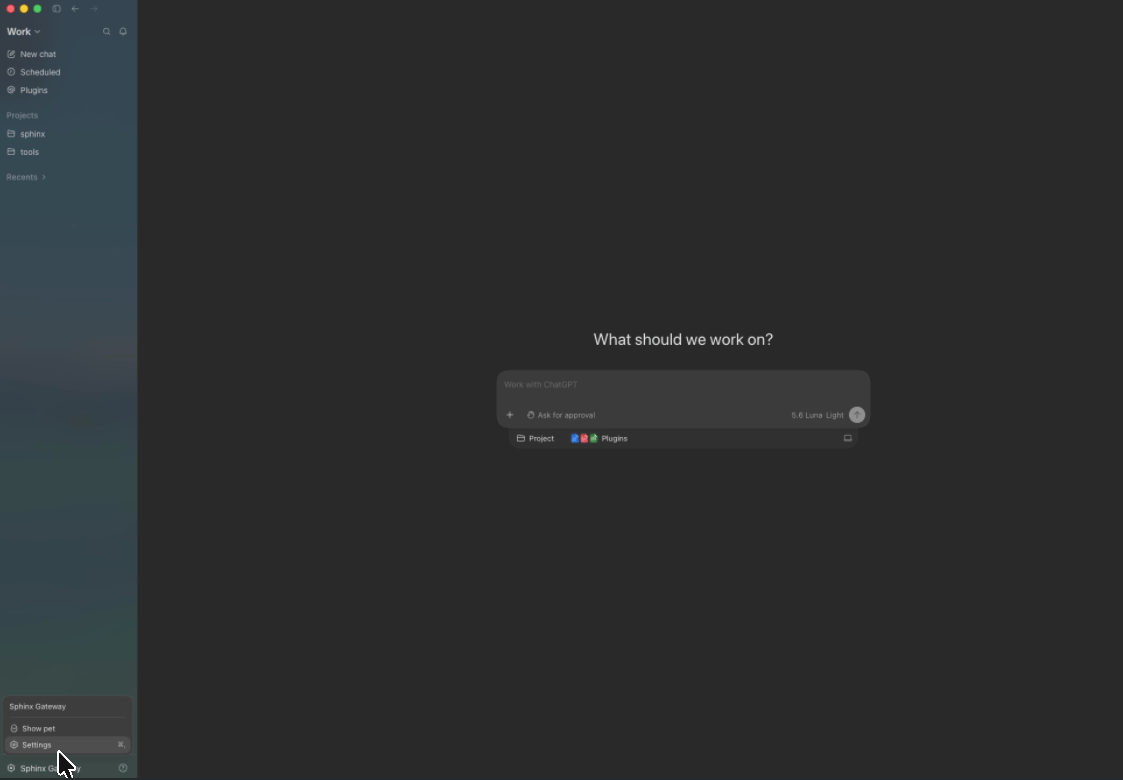
In ChatGPT Desktop, open the account menu in the bottom-left corner and click Settings.
Open Settings from the ChatGPT Desktop account menu
2
Open Plugins
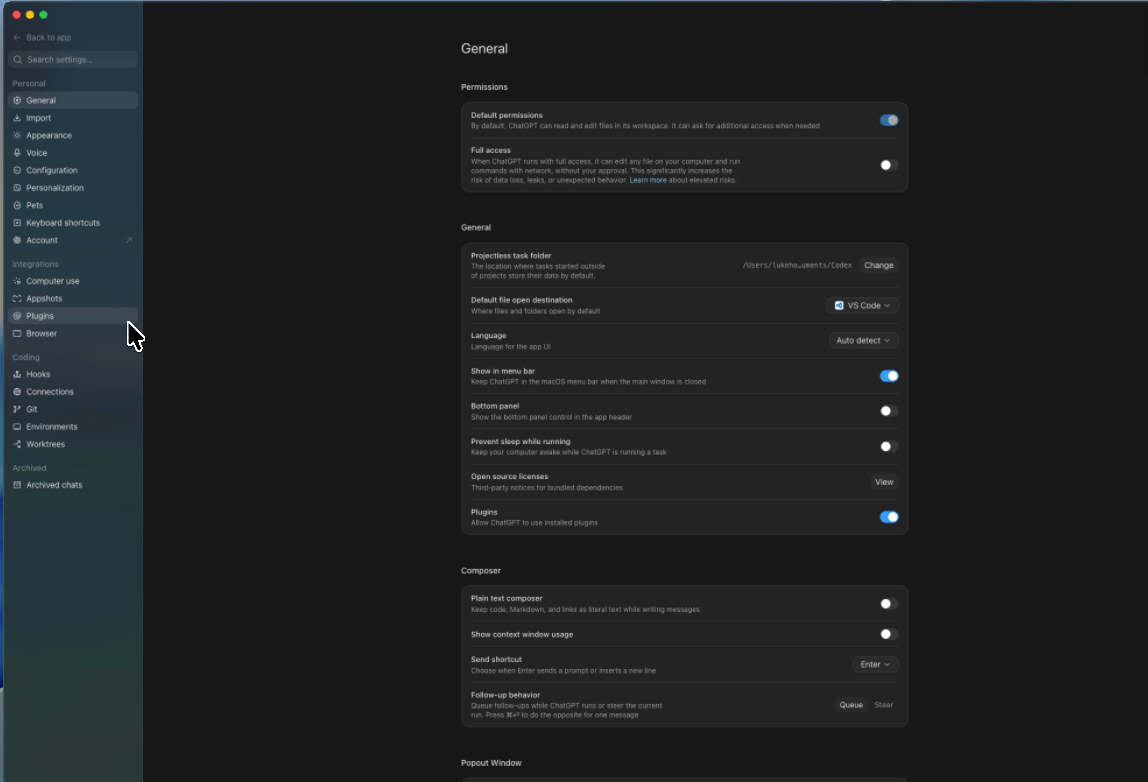
In the Settings sidebar, click Plugins.
Open the Plugins settings page
3
Add an MCP server
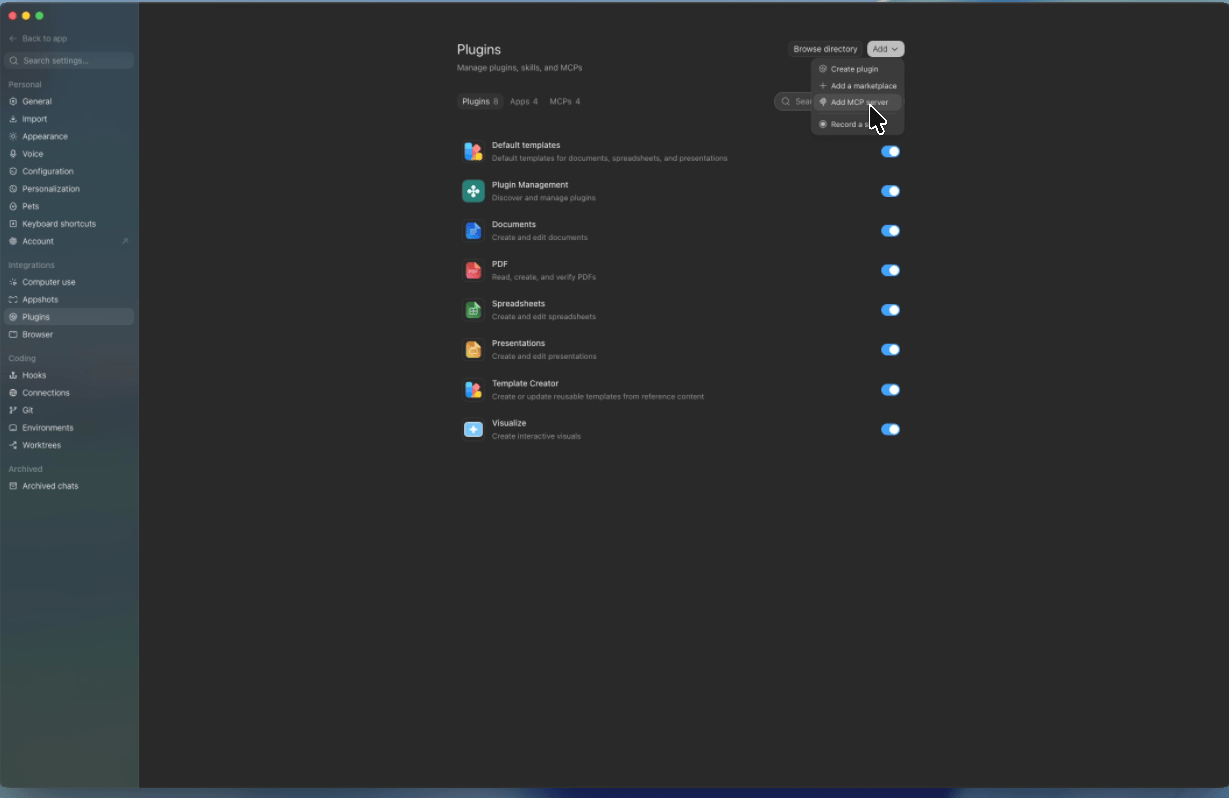
Click Add, then select Add MCP server.
Add a custom MCP server from the Plugins page
4
Configure the Sphinx MCP server
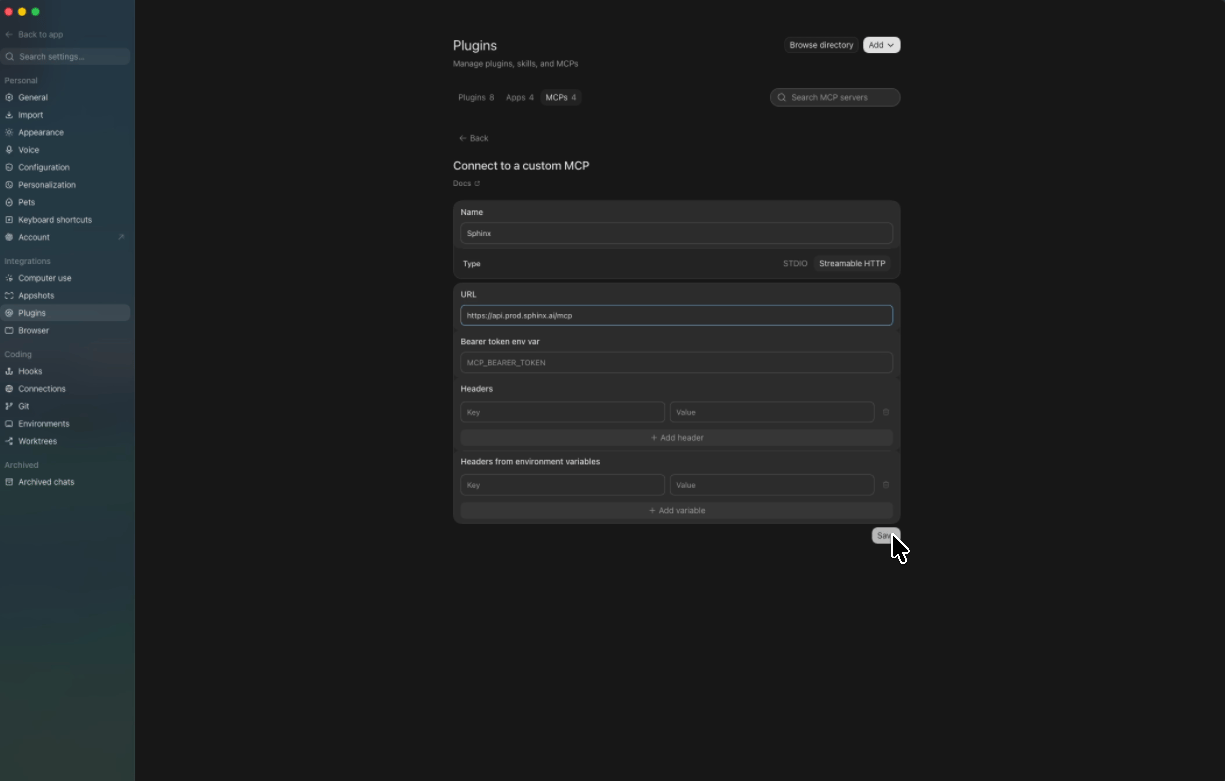
Complete the form with the following values:
Field
Value
Name
sphinx
Type
Streamable HTTP
URL
https://api.prod.sphinx.ai/mcp
Leave the remaining fields blank, then click Save.
Configure the Sphinx MCP server connection
5
Authenticate with Sphinx
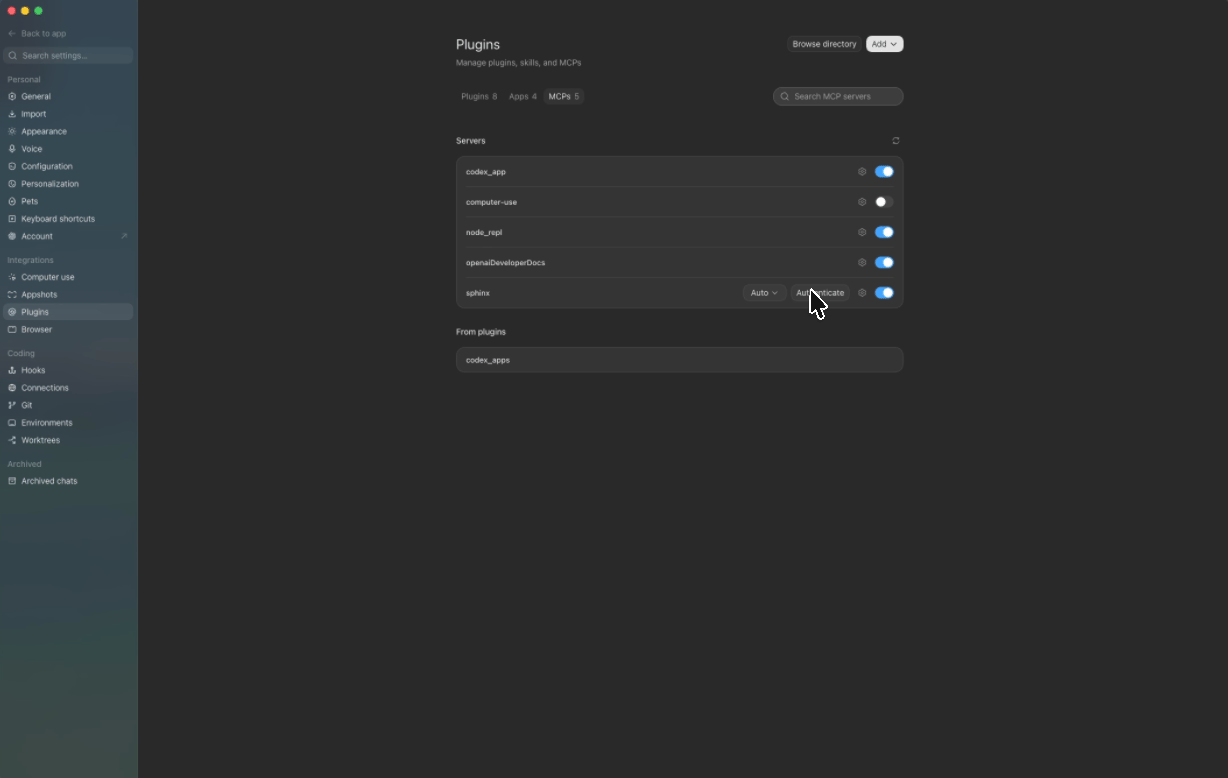
Open the MCPs tab on the Plugins page, find sphinx, and click Authenticate. ChatGPT opens the Sphinx authorization page in your browser.
Authenticate the Sphinx MCP server
6
Allow access to your workspace
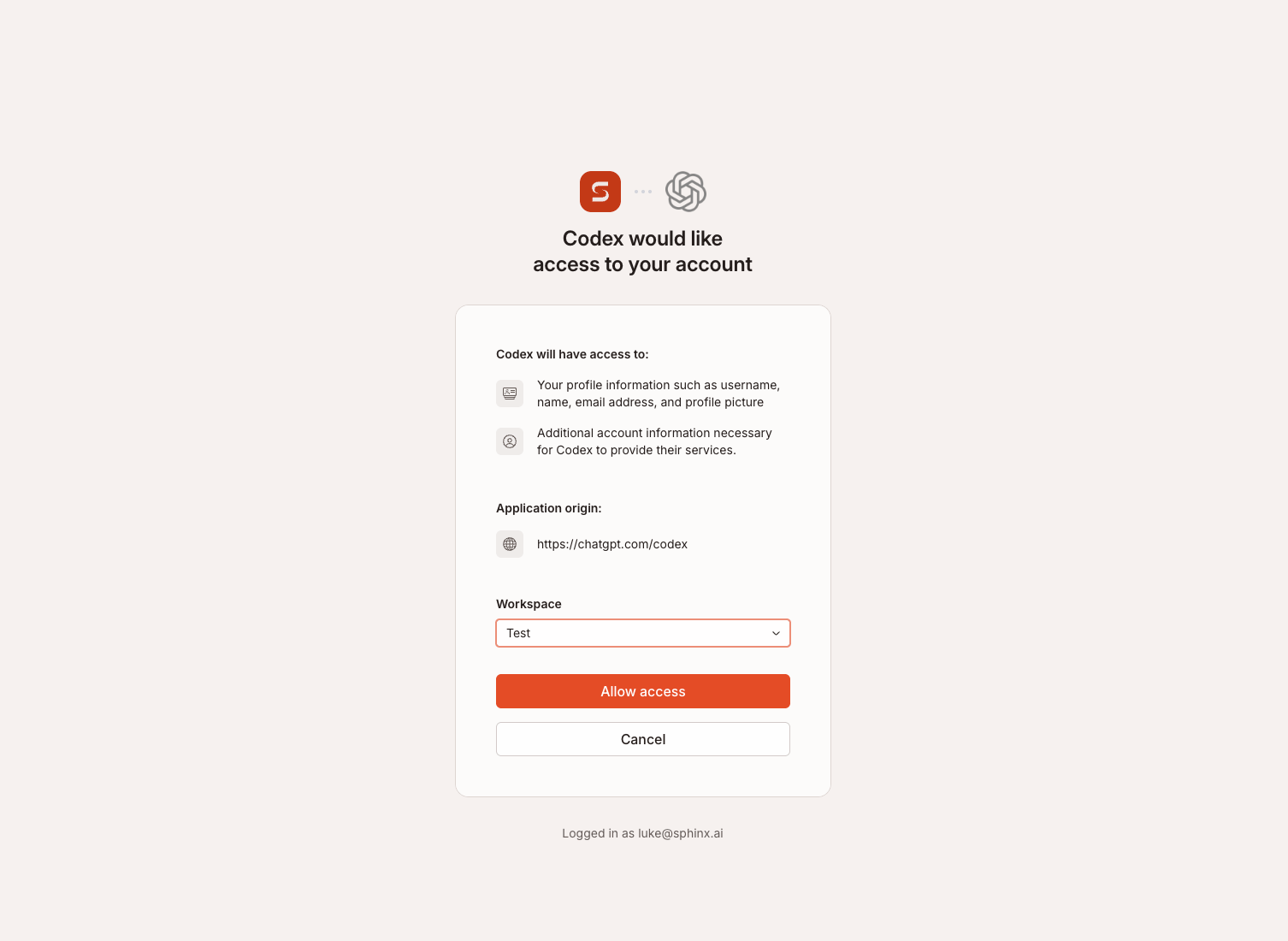
On the authorization page, select the Sphinx workspace you want to connect, then click Allow access.
Authorize ChatGPT Desktop to access a Sphinx workspace
The Sphinx MCP server is now connected and ready to use in ChatGPT Desktop.
{"docsConfig":{"theme":"aspen","$schema":"https://mintlify.com/docs.json","name":"Sphinx Docs","colors":{"primary":"#704643","light":"#ede2d6","dark":"#15803D"},"logo":{"light":"https://mintcdn.com/sphinx-977f1673/1wWAviaQrCe_7dvG/logo/sphinx.svg?fit=max\u0026auto=format\u0026n=1wWAviaQrCe_7dvG\u0026q=85\u0026s=3f3d9bb107547b1e4075269ff8505a2c","dark":"https://mintcdn.com/sphinx-977f1673/1wWAviaQrCe_7dvG/logo/sphinx.svg?fit=max\u0026auto=format\u0026n=1wWAviaQrCe_7dvG\u0026q=85\u0026s=3f3d9bb107547b1e4075269ff8505a2c"},"favicon":"https://mintcdn.com/sphinx-977f1673/1wWAviaQrCe_7dvG/logo/sphinx.svg?fit=max\u0026auto=format\u0026n=1wWAviaQrCe_7dvG\u0026q=85\u0026s=3f3d9bb107547b1e4075269ff8505a2c","navbar":{"links":[{"href":"mailto:support@sphinx.ai","label":"Support"}]},"footer":{"socials":{"x":"https://x.com/getsphinx","linkedin":"https://www.linkedin.com/company/sphinx-ml"}},"styling":{"latex":false},"navigation":{"global":{"anchors":[{"anchor":"Blog","icon":"newspaper","href":"https://www.sphinx.ai/blog/"}]},"pages":[]}},"deployment":{"deploymentMetadataValue":{"subdomain":"sphinx-977f1673","hasAudioNarration":false,"actualSubdomain":"sphinx-977f1673","customDomains":["docs.sphinx.ai"],"gitSource":{"type":"github","owner":"sphinx-ml","repo":"docs","deployBranch":"main","contentDirectory":"","isPrivate":true,"mountPath":"","label":""},"chroma":{"liveDeploymentHistoryId":"6ad126cba2e1cb429adbd9de","collectionId":"633848d7-5424-4c04-8ba5-7eb28c40bf33","schemaVersion":"v3","latestBuiltDeploymentHistoryId":"6ad126cba2e1cb429adbd9de"},"entitlements":{},"buildId":"6ad126cba2e1cb429adbd9de","clientVersion":"0.0.3939","searchFilterCounts":[{"language":"default","tag":"Documentation","count":11},{"language":"default","tag":"Setup","count":6},{"language":"default","tag":"Knowledge base","count":2},{"language":"default","tag":"Python SDK","count":2},{"language":"default","tag":"Home","count":1}]},"assistantConfig":{"enableStarterQuestions":false},"hasChatPermissions":false,"hasWebMcpPermissions":false,"toggles":[{"name":"kill-isr","enabled":true,"variant":{"name":"disabled","enabled":false,"feature_enabled":true},"impressionData":false},{"name":"agent-mintlify-slack","enabled":true,"variant":{"name":"disabled","enabled":false,"feature_enabled":true},"impressionData":false},{"name":"editor-v7-file-tree","enabled":true,"variant":{"name":"disabled","enabled":false,"feature_enabled":true},"impressionData":false},{"name":"agent-integrations-settings","enabled":true,"variant":{"name":"disabled","enabled":false,"feature_enabled":true},"impressionData":false},{"name":"automations-pr-grouping","enabled":true,"variant":{"name":"disabled","enabled":false,"feature_enabled":true},"impressionData":false},{"name":"custom-prefix","enabled":true,"variant":{"name":"disabled","enabled":false,"feature_enabled":true},"impressionData":false},{"name":"analytics-v7","enabled":true,"variant":{"name":"disabled","enabled":false,"feature_enabled":true},"impressionData":false},{"name":"user-flows-analytics","enabled":true,"variant":{"name":"disabled","enabled":false,"feature_enabled":true},"impressionData":false},{"name":"no-publish-flow","enabled":true,"variant":{"name":"disabled","enabled":false,"feature_enabled":true},"impressionData":false},{"name":"workos-onboarding","enabled":true,"variant":{"name":"disabled","enabled":false,"feature_enabled":true},"impressionData":false},{"name":"llms-txt-v2","enabled":true,"variant":{"name":"disabled","enabled":false,"feature_enabled":true},"impressionData":false},{"name":"pause-universal-search-reconcile","enabled":true,"variant":{"name":"disabled","enabled":false,"feature_enabled":true},"impressionData":false},{"name":"snapshot-serving-live","enabled":true,"variant":{"name":"disabled","enabled":false,"feature_enabled":true},"impressionData":false},{"name":"stripTemperatureMiddleware","enabled":true,"variant":{"name":"disabled","enabled":false,"feature_enabled":true},"impressionData":false},{"name":"per-site-search-delta","enabled":true,"variant":{"name":"disabled","enabled":false,"feature_enabled":true},"impressionData":false},{"name":"support-platform-pylon-zendesk","enabled":true,"variant":{"name":"disabled","enabled":false,"feature_enabled":true},"impressionData":false},{"name":"snapshot-serving","enabled":true,"variant":{"name":"disabled","enabled":false,"feature_enabled":true},"impressionData":false},{"name":"instant-rollback","enabled":true,"variant":{"name":"disabled","enabled":false,"feature_enabled":true},"impressionData":false},{"name":"granular-notifications-server","enabled":true,"variant":{"name":"disabled","enabled":false,"feature_enabled":true},"impressionData":false},{"name":"granular-notifications","enabled":true,"variant":{"name":"disabled","enabled":false,"feature_enabled":true},"impressionData":false},{"name":"editor-private-page-search","enabled":true,"variant":{"name":"disabled","enabled":false,"feature_enabled":true},"impressionData":false},{"name":"automations-fable","enabled":true,"variant":{"name":"disabled","enabled":false,"feature_enabled":true},"impressionData":false},{"name":"fixed-ai-action-pricing","enabled":true,"variant":{"name":"disabled","enabled":false,"feature_enabled":true},"impressionData":false},{"name":"automation-resolve-merge-conflict","enabled":true,"variant":{"name":"disabled","enabled":false,"feature_enabled":true},"impressionData":false},{"name":"scoped-publishing","enabled":true,"variant":{"name":"disabled","enabled":false,"feature_enabled":true},"impressionData":false},{"name":"mintql","enabled":true,"variant":{"name":"disabled","enabled":false,"feature_enabled":true},"impressionData":false},{"name":"page-level-analytics","enabled":true,"variant":{"name":"disabled","enabled":false,"feature_enabled":true},"impressionData":false},{"name":"editor-version-history-v2","enabled":true,"variant":{"name":"disabled","enabled":false,"feature_enabled":true},"impressionData":false},{"name":"editor-nav-generations","enabled":true,"variant":{"name":"disabled","enabled":false,"feature_enabled":true},"impressionData":false},{"name":"billing-page-v2","enabled":true,"variant":{"name":"disabled","enabled":false,"feature_enabled":true},"impressionData":false},{"name":"workspace-projects","enabled":true,"variant":{"name":"disabled","enabled":false,"feature_enabled":true},"impressionData":false},{"name":"assistant-v5","enabled":true,"variant":{"name":"disabled","enabled":false,"feature_enabled":true},"impressionData":false},{"name":"byok-sep-25","enabled":true,"variant":{"name":"disabled","enabled":false,"feature_enabled":true},"impressionData":false},{"name":"fork-pr-previews","enabled":true,"variant":{"name":"disabled","enabled":false,"feature_enabled":true},"impressionData":false},{"name":"revalidation-jwt","enabled":true,"variant":{"name":"disabled","enabled":false,"feature_enabled":true},"impressionData":false},{"name":"vite-origin","enabled":true,"variant":{"name":"disabled","enabled":false,"feature_enabled":true},"impressionData":false},{"name":"editor-agent-model-picker","enabled":true,"variant":{"name":"disabled","enabled":false,"feature_enabled":true},"impressionData":false},{"name":"billing-updated-9-15","enabled":true,"variant":{"name":"disabled","enabled":false,"feature_enabled":true},"impressionData":false},{"name":"hobby-abuse-scan","enabled":true,"variant":{"name":"disabled","enabled":false,"feature_enabled":true},"impressionData":false},{"name":"dashboard-inbox","enabled":true,"variant":{"name":"disabled","enabled":false,"feature_enabled":true},"impressionData":false}],"isAtlas":false,"googleFontsInlined":false},"customCss":[],"page":{"pagePath":"chatgpt-desktop/install-sphinx-mcp","slug":"/chatgpt-desktop/install-sphinx-mcp","pageMetadata":{"title":"Install Sphinx MCP in ChatGPT Desktop","description":"Connect ChatGPT Desktop to the Sphinx MCP server and authorize access to your workspace.","href":"/chatgpt-desktop/install-sphinx-mcp"},"description":{"compiledSource":"\"use strict\";\nconst {jsx: _jsx} = arguments[0];\nconst {useMDXComponents: _provideComponents} = arguments[0];\nfunction _createMdxContent(props) {\n const _components = {\n p: \"p\",\n ..._provideComponents(),\n ...props.components\n };\n return _jsx(_components.p, {\n children: \"Connect ChatGPT Desktop to the Sphinx MCP server and authorize access to your workspace.\"\n });\n}\nfunction MDXContent(props = {}) {\n const {wrapper: MDXLayout} = {\n ..._provideComponents(),\n ...props.components\n };\n return MDXLayout ? _jsx(MDXLayout, {\n ...props,\n children: _jsx(_createMdxContent, {\n ...props\n })\n }) : _createMdxContent(props);\n}\nreturn {\n default: MDXContent\n};\n","frontmatter":{},"scope":{}},"pageType":"default","mdx":{"mdxSource":{"compiledSource":"\"use strict\";const{Fragment:_Fragment,jsx:_jsx,jsxs:_jsxs}=arguments[0];const{useMDXComponents:_provideComponents}=arguments[0];function _createMdxContent(props){const _components={code:`code`,li:`li`,p:`p`,strong:`strong`,tbody:`tbody`,td:`td`,th:`th`,thead:`thead`,tr:`tr`,ul:`ul`,..._provideComponents(),...props.components},{Check,Frame,Heading,OptimizedImage,Step,Steps,Table}=_components;if(!Check)_missingMdxReference(`Check`,true);if(!Frame)_missingMdxReference(`Frame`,true);if(!Heading)_missingMdxReference(`Heading`,true);if(!OptimizedImage)_missingMdxReference(`OptimizedImage`,true);if(!Step)_missingMdxReference(`Step`,true);if(!Steps)_missingMdxReference(`Steps`,true);if(!Table)_missingMdxReference(`Table`,true);return _jsxs(_Fragment,{children:[_jsx(_components.p,{children:`Connect ChatGPT Desktop to Sphinx so you can use Sphinx tools in your chats.`}),`\n`,_jsx(Heading,{level:`2`,id:`prerequisites`,children:`Prerequisites`}),`\n`,_jsx(_components.p,{children:`Before you begin, make sure you have:`}),`\n`,_jsxs(_components.ul,{children:[`\n`,_jsx(_components.li,{children:`The latest version of ChatGPT Desktop`}),`\n`,_jsx(_components.li,{children:`A Sphinx account with access to a workspace`}),`\n`]}),`\n`,_jsx(Heading,{level:`2`,id:`add-the-sphinx-mcp-server`,children:`Add the Sphinx MCP server`}),`\n`,_jsxs(Steps,{children:[_jsxs(Step,{title:`Open Settings`,children:[_jsxs(_components.p,{children:[`In ChatGPT Desktop, open the account menu in the bottom-left corner and click `,_jsx(_components.strong,{children:`Settings`}),`.`]}),_jsx(Frame,{caption:`Open Settings from the ChatGPT Desktop account menu`,children:_jsx(OptimizedImage,{src:`https://mintcdn.com/sphinx-977f1673/LJumyZXT_10Y9zpi/chatgpt-desktop/open-settings.png?fit=max\u0026auto=format\u0026n=LJumyZXT_10Y9zpi\u0026q=85\u0026s=752ed919cb1145471c2b6a54765b795d`,alt:`ChatGPT Desktop account menu with the Settings option highlighted`,\"data-og-width\":`1123`,width:`1123`,\"data-og-height\":`780`,height:`780`,\"data-path\":`chatgpt-desktop/open-settings.png`,\"data-optimize\":`true`,\"data-opv\":`3`,srcset:`https://mintcdn.com/sphinx-977f1673/LJumyZXT_10Y9zpi/chatgpt-desktop/open-settings.png?w=280\u0026fit=max\u0026auto=format\u0026n=LJumyZXT_10Y9zpi\u0026q=85\u0026s=3f187f6f8c1888178c0b3559d4fc0584 280w, https://mintcdn.com/sphinx-977f1673/LJumyZXT_10Y9zpi/chatgpt-desktop/open-settings.png?w=560\u0026fit=max\u0026auto=format\u0026n=LJumyZXT_10Y9zpi\u0026q=85\u0026s=bc573134a1ad6e3dc2ac5001636d55f7 560w, https://mintcdn.com/sphinx-977f1673/LJumyZXT_10Y9zpi/chatgpt-desktop/open-settings.png?w=840\u0026fit=max\u0026auto=format\u0026n=LJumyZXT_10Y9zpi\u0026q=85\u0026s=cd42863e7f50cb025b5b8db83a8f5919 840w, https://mintcdn.com/sphinx-977f1673/LJumyZXT_10Y9zpi/chatgpt-desktop/open-settings.png?w=1100\u0026fit=max\u0026auto=format\u0026n=LJumyZXT_10Y9zpi\u0026q=85\u0026s=e0a6414a7e16326c68fde12e2518bc32 1100w, https://mintcdn.com/sphinx-977f1673/LJumyZXT_10Y9zpi/chatgpt-desktop/open-settings.png?w=1650\u0026fit=max\u0026auto=format\u0026n=LJumyZXT_10Y9zpi\u0026q=85\u0026s=dace4863c7603b10160bcc8e2ca91022 1650w, https://mintcdn.com/sphinx-977f1673/LJumyZXT_10Y9zpi/chatgpt-desktop/open-settings.png?w=2500\u0026fit=max\u0026auto=format\u0026n=LJumyZXT_10Y9zpi\u0026q=85\u0026s=7ba240be5a964c24de7584cdb09306c1 2500w`})})]}),_jsxs(Step,{title:`Open Plugins`,children:[_jsxs(_components.p,{children:[`In the Settings sidebar, click `,_jsx(_components.strong,{children:`Plugins`}),`.`]}),_jsx(Frame,{caption:`Open the Plugins settings page`,children:_jsx(OptimizedImage,{src:`https://mintcdn.com/sphinx-977f1673/LJumyZXT_10Y9zpi/chatgpt-desktop/open-plugins-settings.png?fit=max\u0026auto=format\u0026n=LJumyZXT_10Y9zpi\u0026q=85\u0026s=751caa69dd496814def1c02c9ebd97a5`,alt:`ChatGPT Desktop Settings with Plugins highlighted in the sidebar`,\"data-og-width\":`1148`,width:`1148`,\"data-og-height\":`782`,height:`782`,\"data-path\":`chatgpt-desktop/open-plugins-settings.png`,\"data-optimize\":`true`,\"data-opv\":`3`,srcset:`https://mintcdn.com/sphinx-977f1673/LJumyZXT_10Y9zpi/chatgpt-desktop/open-plugins-settings.png?w=280\u0026fit=max\u0026auto=format\u0026n=LJumyZXT_10Y9zpi\u0026q=85\u0026s=ac7ab8b12d545bd982d08f873147e6f9 280w, https://mintcdn.com/sphinx-977f1673/LJumyZXT_10Y9zpi/chatgpt-desktop/open-plugins-settings.png?w=560\u0026fit=max\u0026auto=format\u0026n=LJumyZXT_10Y9zpi\u0026q=85\u0026s=a2979f88c51d4e8030687d16f5490087 560w, https://mintcdn.com/sphinx-977f1673/LJumyZXT_10Y9zpi/chatgpt-desktop/open-plugins-settings.png?w=840\u0026fit=max\u0026auto=format\u0026n=LJumyZXT_10Y9zpi\u0026q=85\u0026s=1b260c0d63c7af7777f565ea907fe3cb 840w, https://mintcdn.com/sphinx-977f1673/LJumyZXT_10Y9zpi/chatgpt-desktop/open-plugins-settings.png?w=1100\u0026fit=max\u0026auto=format\u0026n=LJumyZXT_10Y9zpi\u0026q=85\u0026s=633ffe47e230fb9ccb4000ea8ff82bff 1100w, https://mintcdn.com/sphinx-977f1673/LJumyZXT_10Y9zpi/chatgpt-desktop/open-plugins-settings.png?w=1650\u0026fit=max\u0026auto=format\u0026n=LJumyZXT_10Y9zpi\u0026q=85\u0026s=ca7fb4b7d31e261d55fcf2bd502caa81 1650w, https://mintcdn.com/sphinx-977f1673/LJumyZXT_10Y9zpi/chatgpt-desktop/open-plugins-settings.png?w=2500\u0026fit=max\u0026auto=format\u0026n=LJumyZXT_10Y9zpi\u0026q=85\u0026s=1cfb650c712722a48227198a19dd0abe 2500w`})})]}),_jsxs(Step,{title:`Add an MCP server`,children:[_jsxs(_components.p,{children:[`Click `,_jsx(_components.strong,{children:`Add`}),`, then select `,_jsx(_components.strong,{children:`Add MCP server`}),`.`]}),_jsx(Frame,{caption:`Add a custom MCP server from the Plugins page`,children:_jsx(OptimizedImage,{src:`https://mintcdn.com/sphinx-977f1673/LJumyZXT_10Y9zpi/chatgpt-desktop/add-mcp-server.png?fit=max\u0026auto=format\u0026n=LJumyZXT_10Y9zpi\u0026q=85\u0026s=b281bb6361576ea689717f813c7d2513`,alt:`ChatGPT Desktop Plugins page with Add MCP server selected in the Add menu`,\"data-og-width\":`1229`,width:`1229`,\"data-og-height\":`798`,height:`798`,\"data-path\":`chatgpt-desktop/add-mcp-server.png`,\"data-optimize\":`true`,\"data-opv\":`3`,srcset:`https://mintcdn.com/sphinx-977f1673/LJumyZXT_10Y9zpi/chatgpt-desktop/add-mcp-server.png?w=280\u0026fit=max\u0026auto=format\u0026n=LJumyZXT_10Y9zpi\u0026q=85\u0026s=a569cdbd4ba2c22a7ec518162515b81d 280w, https://mintcdn.com/sphinx-977f1673/LJumyZXT_10Y9zpi/chatgpt-desktop/add-mcp-server.png?w=560\u0026fit=max\u0026auto=format\u0026n=LJumyZXT_10Y9zpi\u0026q=85\u0026s=ba0d946d4d87659fcd55ccdf23e1a138 560w, https://mintcdn.com/sphinx-977f1673/LJumyZXT_10Y9zpi/chatgpt-desktop/add-mcp-server.png?w=840\u0026fit=max\u0026auto=format\u0026n=LJumyZXT_10Y9zpi\u0026q=85\u0026s=d4d31afb691eb9b63914d35caba69f87 840w, https://mintcdn.com/sphinx-977f1673/LJumyZXT_10Y9zpi/chatgpt-desktop/add-mcp-server.png?w=1100\u0026fit=max\u0026auto=format\u0026n=LJumyZXT_10Y9zpi\u0026q=85\u0026s=1d17fb6d0367528700467ea67b9ddedd 1100w, https://mintcdn.com/sphinx-977f1673/LJumyZXT_10Y9zpi/chatgpt-desktop/add-mcp-server.png?w=1650\u0026fit=max\u0026auto=format\u0026n=LJumyZXT_10Y9zpi\u0026q=85\u0026s=7380a62dc769724b8401323addd6b16d 1650w, https://mintcdn.com/sphinx-977f1673/LJumyZXT_10Y9zpi/chatgpt-desktop/add-mcp-server.png?w=2500\u0026fit=max\u0026auto=format\u0026n=LJumyZXT_10Y9zpi\u0026q=85\u0026s=caf4ca26bee0c5a5ea696c7fd91777e9 2500w`})})]}),_jsxs(Step,{title:`Configure the Sphinx MCP server`,children:[_jsx(_components.p,{children:`Complete the form with the following values:`}),_jsxs(Table,{children:[_jsx(_components.thead,{children:_jsxs(_components.tr,{children:[_jsx(_components.th,{children:`Field`}),_jsx(_components.th,{children:`Value`})]})}),_jsxs(_components.tbody,{children:[_jsxs(_components.tr,{children:[_jsx(_components.td,{children:_jsx(_components.strong,{children:`Name`})}),_jsx(_components.td,{children:_jsx(_components.code,{children:`sphinx`})})]}),_jsxs(_components.tr,{children:[_jsx(_components.td,{children:_jsx(_components.strong,{children:`Type`})}),_jsx(_components.td,{children:_jsx(_components.strong,{children:`Streamable HTTP`})})]}),_jsxs(_components.tr,{children:[_jsx(_components.td,{children:_jsx(_components.strong,{children:`URL`})}),_jsx(_components.td,{children:_jsx(_components.code,{children:`https://api.prod.sphinx.ai/mcp`})})]})]})]}),_jsxs(_components.p,{children:[`Leave the remaining fields blank, then click `,_jsx(_components.strong,{children:`Save`}),`.`]}),_jsx(Frame,{caption:`Configure the Sphinx MCP server connection`,children:_jsx(OptimizedImage,{src:`https://mintcdn.com/sphinx-977f1673/LJumyZXT_10Y9zpi/chatgpt-desktop/configure-sphinx-mcp.png?fit=max\u0026auto=format\u0026n=LJumyZXT_10Y9zpi\u0026q=85\u0026s=eaef7c140fa757ed50ed730a195556f6`,alt:`Custom MCP server form configured with the Sphinx name, Streamable HTTP type, and Sphinx MCP URL`,\"data-og-width\":`1225`,width:`1225`,\"data-og-height\":`781`,height:`781`,\"data-path\":`chatgpt-desktop/configure-sphinx-mcp.png`,\"data-optimize\":`true`,\"data-opv\":`3`,srcset:`https://mintcdn.com/sphinx-977f1673/LJumyZXT_10Y9zpi/chatgpt-desktop/configure-sphinx-mcp.png?w=280\u0026fit=max\u0026auto=format\u0026n=LJumyZXT_10Y9zpi\u0026q=85\u0026s=92a1e38d127204d4cc23c14cad1169dc 280w, https://mintcdn.com/sphinx-977f1673/LJumyZXT_10Y9zpi/chatgpt-desktop/configure-sphinx-mcp.png?w=560\u0026fit=max\u0026auto=format\u0026n=LJumyZXT_10Y9zpi\u0026q=85\u0026s=7c5ea113f4fe228733f328783e144e12 560w, https://mintcdn.com/sphinx-977f1673/LJumyZXT_10Y9zpi/chatgpt-desktop/configure-sphinx-mcp.png?w=840\u0026fit=max\u0026auto=format\u0026n=LJumyZXT_10Y9zpi\u0026q=85\u0026s=f75bc02e8b9469bc88ede2013894de1e 840w, https://mintcdn.com/sphinx-977f1673/LJumyZXT_10Y9zpi/chatgpt-desktop/configure-sphinx-mcp.png?w=1100\u0026fit=max\u0026auto=format\u0026n=LJumyZXT_10Y9zpi\u0026q=85\u0026s=5e18b66e24a0761116262f0f2bede8f8 1100w, https://mintcdn.com/sphinx-977f1673/LJumyZXT_10Y9zpi/chatgpt-desktop/configure-sphinx-mcp.png?w=1650\u0026fit=max\u0026auto=format\u0026n=LJumyZXT_10Y9zpi\u0026q=85\u0026s=361a53cac654100568a98a9eee4a8744 1650w, https://mintcdn.com/sphinx-977f1673/LJumyZXT_10Y9zpi/chatgpt-desktop/configure-sphinx-mcp.png?w=2500\u0026fit=max\u0026auto=format\u0026n=LJumyZXT_10Y9zpi\u0026q=85\u0026s=82400d28552b797a6e6f041e94e54c71 2500w`})})]}),_jsxs(Step,{title:`Authenticate with Sphinx`,children:[_jsxs(_components.p,{children:[`Open the `,_jsx(_components.strong,{children:`MCPs`}),` tab on the Plugins page, find `,_jsx(_components.strong,{children:`sphinx`}),`, and click `,_jsx(_components.strong,{children:`Authenticate`}),`. ChatGPT opens the Sphinx authorization page in your browser.`]}),_jsx(Frame,{caption:`Authenticate the Sphinx MCP server`,children:_jsx(OptimizedImage,{src:`https://mintcdn.com/sphinx-977f1673/LJumyZXT_10Y9zpi/chatgpt-desktop/authenticate-sphinx-mcp.png?fit=max\u0026auto=format\u0026n=LJumyZXT_10Y9zpi\u0026q=85\u0026s=3f9e1978e14a958f6a5bfdbd9e45858e`,alt:`MCPs tab on the ChatGPT Desktop Plugins page showing the Authenticate button for sphinx`,\"data-og-width\":`1228`,width:`1228`,\"data-og-height\":`778`,height:`778`,\"data-path\":`chatgpt-desktop/authenticate-sphinx-mcp.png`,\"data-optimize\":`true`,\"data-opv\":`3`,srcset:`https://mintcdn.com/sphinx-977f1673/LJumyZXT_10Y9zpi/chatgpt-desktop/authenticate-sphinx-mcp.png?w=280\u0026fit=max\u0026auto=format\u0026n=LJumyZXT_10Y9zpi\u0026q=85\u0026s=fa32539aca4c069c35161fa8afb29cb9 280w, https://mintcdn.com/sphinx-977f1673/LJumyZXT_10Y9zpi/chatgpt-desktop/authenticate-sphinx-mcp.png?w=560\u0026fit=max\u0026auto=format\u0026n=LJumyZXT_10Y9zpi\u0026q=85\u0026s=a5b705e2e68bb9894becdf1310a7db08 560w, https://mintcdn.com/sphinx-977f1673/LJumyZXT_10Y9zpi/chatgpt-desktop/authenticate-sphinx-mcp.png?w=840\u0026fit=max\u0026auto=format\u0026n=LJumyZXT_10Y9zpi\u0026q=85\u0026s=eee3486dee522300ce929146b2a9629b 840w, https://mintcdn.com/sphinx-977f1673/LJumyZXT_10Y9zpi/chatgpt-desktop/authenticate-sphinx-mcp.png?w=1100\u0026fit=max\u0026auto=format\u0026n=LJumyZXT_10Y9zpi\u0026q=85\u0026s=14feed83db0348f7bcf582ee83fbfba7 1100w, https://mintcdn.com/sphinx-977f1673/LJumyZXT_10Y9zpi/chatgpt-desktop/authenticate-sphinx-mcp.png?w=1650\u0026fit=max\u0026auto=format\u0026n=LJumyZXT_10Y9zpi\u0026q=85\u0026s=e17333774f37a27aeffaee90f4ff00a6 1650w, https://mintcdn.com/sphinx-977f1673/LJumyZXT_10Y9zpi/chatgpt-desktop/authenticate-sphinx-mcp.png?w=2500\u0026fit=max\u0026auto=format\u0026n=LJumyZXT_10Y9zpi\u0026q=85\u0026s=140d703dea3670098dafff9ed4601eaa 2500w`})})]}),_jsxs(Step,{title:`Allow access to your workspace`,children:[_jsxs(_components.p,{children:[`On the authorization page, select the Sphinx workspace you want to connect, then click `,_jsx(_components.strong,{children:`Allow access`}),`.`]}),_jsx(Frame,{caption:`Authorize ChatGPT Desktop to access a Sphinx workspace`,children:_jsx(OptimizedImage,{src:`https://mintcdn.com/sphinx-977f1673/LJumyZXT_10Y9zpi/chatgpt-desktop/authorize-sphinx-mcp.png?fit=max\u0026auto=format\u0026n=LJumyZXT_10Y9zpi\u0026q=85\u0026s=de2d56d453c32c5564f6ecf585221dd5`,alt:`Sphinx authorization page with a workspace selector and Allow access button`,\"data-og-width\":`1506`,width:`1506`,\"data-og-height\":`1100`,height:`1100`,\"data-path\":`chatgpt-desktop/authorize-sphinx-mcp.png`,\"data-optimize\":`true`,\"data-opv\":`3`,srcset:`https://mintcdn.com/sphinx-977f1673/LJumyZXT_10Y9zpi/chatgpt-desktop/authorize-sphinx-mcp.png?w=280\u0026fit=max\u0026auto=format\u0026n=LJumyZXT_10Y9zpi\u0026q=85\u0026s=4f1148dffb53cc853836244a8ff81bea 280w, https://mintcdn.com/sphinx-977f1673/LJumyZXT_10Y9zpi/chatgpt-desktop/authorize-sphinx-mcp.png?w=560\u0026fit=max\u0026auto=format\u0026n=LJumyZXT_10Y9zpi\u0026q=85\u0026s=b44e1b3ab6ed89a871e2cd7659583c82 560w, https://mintcdn.com/sphinx-977f1673/LJumyZXT_10Y9zpi/chatgpt-desktop/authorize-sphinx-mcp.png?w=840\u0026fit=max\u0026auto=format\u0026n=LJumyZXT_10Y9zpi\u0026q=85\u0026s=98af34360f944a5cf54185d08677825d 840w, https://mintcdn.com/sphinx-977f1673/LJumyZXT_10Y9zpi/chatgpt-desktop/authorize-sphinx-mcp.png?w=1100\u0026fit=max\u0026auto=format\u0026n=LJumyZXT_10Y9zpi\u0026q=85\u0026s=a38ca81a8e079096068ee3732d253f7f 1100w, https://mintcdn.com/sphinx-977f1673/LJumyZXT_10Y9zpi/chatgpt-desktop/authorize-sphinx-mcp.png?w=1650\u0026fit=max\u0026auto=format\u0026n=LJumyZXT_10Y9zpi\u0026q=85\u0026s=53b4ef702b4306f3b47679ecb9db2fd6 1650w, https://mintcdn.com/sphinx-977f1673/LJumyZXT_10Y9zpi/chatgpt-desktop/authorize-sphinx-mcp.png?w=2500\u0026fit=max\u0026auto=format\u0026n=LJumyZXT_10Y9zpi\u0026q=85\u0026s=4dbb88cd3054576068efcfe2ab2b7dad 2500w`})})]})]}),`\n`,_jsx(Check,{children:_jsx(_components.p,{children:`The Sphinx MCP server is now connected and ready to use in ChatGPT Desktop.`})})]})}function MDXContent(props={}){const{wrapper:MDXLayout}={..._provideComponents(),...props.components};return MDXLayout?_jsx(MDXLayout,{...props,children:_jsx(_createMdxContent,{...props})}):_createMdxContent(props)}return{default:MDXContent};function _missingMdxReference(id,component){throw new Error(`Expected `+(component?`component`:`object`)+\" `\"+id+\"` to be defined: you likely forgot to import, pass, or provide it.\")}","frontmatter":{},"scope":{"config":{},"pageMetadata":{"title":"Install Sphinx MCP in ChatGPT Desktop","description":"Connect ChatGPT Desktop to the Sphinx MCP server and authorize access to your workspace.","href":"/chatgpt-desktop/install-sphinx-mcp"}}},"mdxSourceWithNoJs":null},"mdxExtracts":{"tableOfContents":[{"title":"Prerequisites","slug":"prerequisites","depth":2,"children":[]},{"title":"Add the Sphinx MCP server","slug":"add-the-sphinx-mcp-server","depth":2,"children":[]}],"codeExamples":{}},"jsLinks":[],"subdomain":"sphinx-977f1673","siteName":"Sphinx Docs","title":"Install Sphinx MCP in ChatGPT Desktop - Sphinx Docs","navMaps":{"firstHrefInVersion":{},"firstHrefInLanguage":{}},"lastModified":"2026-08-28T19:31:38.828Z","originalFileLocation":"chatgpt-desktop/install-sphinx-mcp.mdx"},"headHtml":"\u003cscript data-mint-head>(function(){var d=document.documentElement,p=null;if(!p){try{p=localStorage.getItem(\"isDarkMode\")}catch(e){}if(p==='true')p='dark';else if(p==='false')p='light';if(p!=='light'\u0026\u0026p!=='dark'\u0026\u0026p!=='system')p=\"system\"}var r=p==='system'?(matchMedia(\"(prefers-color-scheme: dark)\").matches?'dark':'light'):p;d.classList.remove(r==='dark'?'light':'dark');d.classList.add(r);d.setAttribute(\"data-theme-preference\",p)})();\u003c/script>\u003cmeta data-mint-head name=\"description\" content=\"Connect ChatGPT Desktop to the Sphinx MCP server and authorize access to your workspace.\">\u003cmeta data-mint-head name=\"application-name\" content=\"Sphinx Docs\">\u003cmeta data-mint-head name=\"generator\" content=\"Mintlify\">\u003clink data-mint-head rel=\"icon\" type=\"image/png\" sizes=\"192x192\" href=\"/mintlify-assets/_mintlify/favicons/sphinx-977f1673/8idukxGllAmRhGRj/_generated/favicon/android-chrome-192x192.png\" media=\"(prefers-color-scheme: light)\">\u003clink data-mint-head rel=\"apple-touch-icon\" type=\"image/png\" sizes=\"180x180\" href=\"/mintlify-assets/_mintlify/favicons/sphinx-977f1673/8idukxGllAmRhGRj/_generated/favicon/apple-touch-icon.png\">\u003clink data-mint-head rel=\"icon\" type=\"image/png\" sizes=\"16x16\" href=\"/mintlify-assets/_mintlify/favicons/sphinx-977f1673/8idukxGllAmRhGRj/_generated/favicon/favicon-16x16.png\" media=\"(prefers-color-scheme: light)\">\u003clink data-mint-head rel=\"icon\" type=\"image/png\" sizes=\"32x32\" href=\"/mintlify-assets/_mintlify/favicons/sphinx-977f1673/8idukxGllAmRhGRj/_generated/favicon/favicon-32x32.png\" media=\"(prefers-color-scheme: light)\">\u003clink data-mint-head rel=\"shortcut icon\" type=\"image/x-icon\" href=\"/mintlify-assets/_mintlify/favicons/sphinx-977f1673/8idukxGllAmRhGRj/_generated/favicon/favicon.ico\" media=\"(prefers-color-scheme: light)\">\u003clink data-mint-head rel=\"icon\" type=\"image/png\" sizes=\"192x192\" href=\"/mintlify-assets/_mintlify/favicons/sphinx-977f1673/8idukxGllAmRhGRj/_generated/favicon-dark/android-chrome-192x192.png\" media=\"(prefers-color-scheme: dark)\">\u003clink data-mint-head rel=\"icon\" type=\"image/png\" sizes=\"16x16\" href=\"/mintlify-assets/_mintlify/favicons/sphinx-977f1673/8idukxGllAmRhGRj/_generated/favicon-dark/favicon-16x16.png\" media=\"(prefers-color-scheme: dark)\">\u003clink data-mint-head rel=\"icon\" type=\"image/png\" sizes=\"32x32\" href=\"/mintlify-assets/_mintlify/favicons/sphinx-977f1673/8idukxGllAmRhGRj/_generated/favicon-dark/favicon-32x32.png\" media=\"(prefers-color-scheme: dark)\">\u003clink data-mint-head rel=\"shortcut icon\" type=\"image/x-icon\" href=\"/mintlify-assets/_mintlify/favicons/sphinx-977f1673/8idukxGllAmRhGRj/_generated/favicon-dark/favicon.ico\" media=\"(prefers-color-scheme: dark)\">\u003cmeta data-mint-head property=\"og:title\" content=\"Install Sphinx MCP in ChatGPT Desktop - Sphinx Docs\">\u003cmeta data-mint-head property=\"og:description\" content=\"Connect ChatGPT Desktop to the Sphinx MCP server and authorize access to your workspace.\">\u003cmeta data-mint-head property=\"og:site_name\" content=\"Sphinx Docs\">\u003cmeta data-mint-head property=\"og:url\" content=\"https://docs.sphinx.ai/chatgpt-desktop/install-sphinx-mcp\">\u003cmeta data-mint-head property=\"og:type\" content=\"website\">\u003cmeta data-mint-head property=\"og:image\" content=\"https://sphinx-977f1673.mintlify.app/_mintlify/api/og/v2?division=Setup\u0026amp;title=Install+Sphinx+MCP+in+ChatGPT+Desktop\u0026amp;description=Connect+ChatGPT+Desktop+to+the+Sphinx+MCP+server+and+authorize+access+to+your+workspace.\u0026amp;theme=6304f5ecaf4e5e100352fea1\u0026amp;signature=fb6d857542d0ab2067d977bd3d293c6cf58fa7db1abd548b7d167e97eb862aa7\">\u003cmeta data-mint-head property=\"og:image:width\" content=\"1200\">\u003cmeta data-mint-head property=\"og:image:height\" content=\"630\">\u003cmeta data-mint-head name=\"twitter:card\" content=\"summary_large_image\">\u003cmeta data-mint-head name=\"twitter:title\" content=\"Install Sphinx MCP in ChatGPT Desktop - Sphinx Docs\">\u003cmeta data-mint-head name=\"twitter:description\" content=\"Connect ChatGPT Desktop to the Sphinx MCP server and authorize access to your workspace.\">\u003cmeta data-mint-head name=\"twitter:image\" content=\"https://sphinx-977f1673.mintlify.app/_mintlify/api/og/v2?division=Setup\u0026amp;title=Install+Sphinx+MCP+in+ChatGPT+Desktop\u0026amp;description=Connect+ChatGPT+Desktop+to+the+Sphinx+MCP+server+and+authorize+access+to+your+workspace.\u0026amp;theme=6304f5ecaf4e5e100352fea1\u0026amp;signature=fb6d857542d0ab2067d977bd3d293c6cf58fa7db1abd548b7d167e97eb862aa7\">\u003cmeta data-mint-head name=\"twitter:image:width\" content=\"1200\">\u003cmeta data-mint-head name=\"twitter:image:height\" content=\"630\">\u003cmeta data-mint-head name=\"msapplication-config\" content=\"/mintlify-assets/_mintlify/favicons/sphinx-977f1673/8idukxGllAmRhGRj/_generated/favicon/browserconfig.xml\">\u003cmeta data-mint-head name=\"apple-mobile-web-app-title\" content=\"Sphinx Docs\">\u003cmeta data-mint-head name=\"msapplication-TileColor\" content=\"#704643\">\u003clink data-mint-head rel=\"canonical\" href=\"https://docs.sphinx.ai/chatgpt-desktop/install-sphinx-mcp\">\u003clink data-mint-head rel=\"alternate\" type=\"application/xml\" href=\"/sitemap.xml\">\u003clink data-mint-head rel=\"alternate\" type=\"text/markdown\" href=\"/chatgpt-desktop/install-sphinx-mcp.md\">\u003cscript data-mint-head type=\"application/ld+json\">{\"@context\":\"https://schema.org\",\"@graph\":[{\"@type\":\"Organization\",\"@id\":\"https://docs.sphinx.ai/#organization\",\"name\":\"Sphinx Docs\",\"url\":\"https://docs.sphinx.ai\",\"logo\":{\"@type\":\"ImageObject\",\"url\":\"https://mintcdn.com/sphinx-977f1673/1wWAviaQrCe_7dvG/logo/sphinx.svg?fit=max\u0026auto=format\u0026n=1wWAviaQrCe_7dvG\u0026q=85\u0026s=3f3d9bb107547b1e4075269ff8505a2c\"}},{\"@type\":\"WebSite\",\"@id\":\"https://docs.sphinx.ai#website\",\"name\":\"Sphinx Docs\",\"url\":\"https://docs.sphinx.ai\",\"publisher\":{\"@id\":\"https://docs.sphinx.ai/#organization\"}},{\"@type\":\"WebPage\",\"@id\":\"https://docs.sphinx.ai/chatgpt-desktop/install-sphinx-mcp#webpage\",\"url\":\"https://docs.sphinx.ai/chatgpt-desktop/install-sphinx-mcp\",\"name\":\"Install Sphinx MCP in ChatGPT Desktop\",\"description\":\"Connect ChatGPT Desktop to the Sphinx MCP server and authorize access to your workspace.\",\"dateModified\":\"2026-08-28T19:31:38.828Z\",\"isPartOf\":{\"@id\":\"https://docs.sphinx.ai#website\"},\"breadcrumb\":{\"@id\":\"https://docs.sphinx.ai/chatgpt-desktop/install-sphinx-mcp#breadcrumb\"}},{\"@type\":\"BreadcrumbList\",\"@id\":\"https://docs.sphinx.ai/chatgpt-desktop/install-sphinx-mcp#breadcrumb\",\"itemListElement\":[{\"@type\":\"ListItem\",\"position\":1,\"name\":\"Setup\",\"item\":\"https://docs.sphinx.ai/claude/sphinx-plugin-onboarding\"},{\"@type\":\"ListItem\",\"position\":2,\"name\":\"Install Sphinx MCP in ChatGPT Desktop\",\"item\":\"https://docs.sphinx.ai/chatgpt-desktop/install-sphinx-mcp\"}]},{\"@type\":[\"Article\",\"TechArticle\"],\"@id\":\"https://docs.sphinx.ai/chatgpt-desktop/install-sphinx-mcp#article\",\"headline\":\"Install Sphinx MCP in ChatGPT Desktop\",\"name\":\"Install Sphinx MCP in ChatGPT Desktop\",\"description\":\"Connect ChatGPT Desktop to the Sphinx MCP server and authorize access to your workspace.\",\"url\":\"https://docs.sphinx.ai/chatgpt-desktop/install-sphinx-mcp\",\"mainEntityOfPage\":{\"@id\":\"https://docs.sphinx.ai/chatgpt-desktop/install-sphinx-mcp#webpage\"},\"dateModified\":\"2026-08-28T19:31:38.828Z\",\"publisher\":{\"@id\":\"https://docs.sphinx.ai/#organization\"},\"isPartOf\":{\"@id\":\"https://docs.sphinx.ai#website\"}}]}\u003c/script>\u003cscript data-mint-head type=\"application/ld+json\">{\"@context\":\"https://schema.org\",\"@type\":\"WebSite\",\"name\":\"Sphinx Docs\",\"creator\":{\"@type\":\"Organization\",\"name\":\"Mintlify\",\"url\":\"https://mintlify.com\"}}\u003c/script>","siteName":"Sphinx Docs","nav":{"global":{"anchors":[{"anchor":"Blog","icon":"newspaper","href":"https://www.sphinx.ai/blog/"}]},"tabs":[{"tab":"Documentation","groups":[{"group":"Home","pages":[{"title":"Sphinx overview","href":"/overview"}]},{"group":"Setup","pages":[{"title":"Sphinx plugin onboarding for Claude","href":"/claude/sphinx-plugin-onboarding"},{"title":"API key setup for Claude Code CLI","href":"/claude-code-cli/api-key-setup"},{"title":"Connect Claude Desktop to an API gateway","href":"/claude-desktop/api-gateway-setup"},{"title":"Connect Claude Desktop to Sphinx MCP when using Third-Party Inference","href":"/claude-desktop/sphinx-mcp/install-sphinx-mcp"},{"title":"Setup ChatGPT Desktop LLM Gateway","description":"Install ChatGPT for Windows and connect it to the Sphinx LLM Gateway.","href":"/chatgpt-desktop/setup-llm-gateway"},{"title":"Install Sphinx MCP in ChatGPT Desktop","href":"/chatgpt-desktop/install-sphinx-mcp"}]},{"group":"Python SDK","pages":[{"title":".fit Reference","description":null,"href":"/python-sdk/fit"},{"title":"Run your first ingest job","href":"/python-sdk/quickstart"}]},{"group":"Knowledge base","pages":[{"title":"Connect GitHub and add a repository","icon":"github","href":"/git-ingest"},{"title":"Write a good ingest prompt","icon":"pen-to-square","href":"/ingest-prompts"}]}]}]},"title":"Install Sphinx MCP in ChatGPT Desktop - Sphinx Docs","buildId":"dpl_5UDDZ9hnigTkoV7QtvQ39eUp84nu","deploymentId":"dpl_5UDDZ9hnigTkoV7QtvQ39eUp84nu","dynamics":["07c022d89b","a74be98ba7"],"chunks":["Frame-CUTvSGqu.js","DynamicMarkdown-BGu84FgU.js","zoom-image-lightbox-ChyC7Hte.js","PlusIcon-DXkY3IBj.js","lightbox-handle-r17bVUz3.js"]}