> ## Documentation Index
> Fetch the complete documentation index at: https://docs.sphinx.ai/llms.txt
> Use this file to discover all available pages before exploring further.

# Getting Started

> Get started with Sphinx in minutes and run your first AI-powered analysis

## Prerequisites

Before you begin, ensure you have the following installed:

<AccordionGroup>
  <Accordion title="IDE" icon="code">
    Choose one of the following:

    * [VS Code](https://code.visualstudio.com/Download)
    * [Cursor](https://cursor.com/download)
    * [Windsurf](https://windsurf.com/download)
  </Accordion>

  <Accordion title="Jupyter extension" icon="book">
    Install the [Jupyter extension](https://marketplace.visualstudio.com/items?itemName=ms-toolsai.jupyter) for your IDE to work with notebooks.
  </Accordion>

  <Accordion title="Python environment" icon="python">
    * Python 3.8 or higher
    * Required packages: `pandas`, `matplotlib`, `seaborn`, `scipy`, `scikit-learn`, `numpy`

    Install all packages at once:

    ```bash theme={null}
    pip install pandas matplotlib seaborn scipy scikit-learn numpy
    ```
  </Accordion>
</AccordionGroup>

## Video walkthrough

<Frame>
  <iframe width="100%" height="400" src="https://www.loom.com/embed/18a3a6dabff4404aaafd47b49d30f7ed" frameborder="0" allow="autoplay; fullscreen; picture-in-picture" allowfullscreen />
</Frame>

## Getting started

<Steps>
  <Step title="Create your Sphinx account">
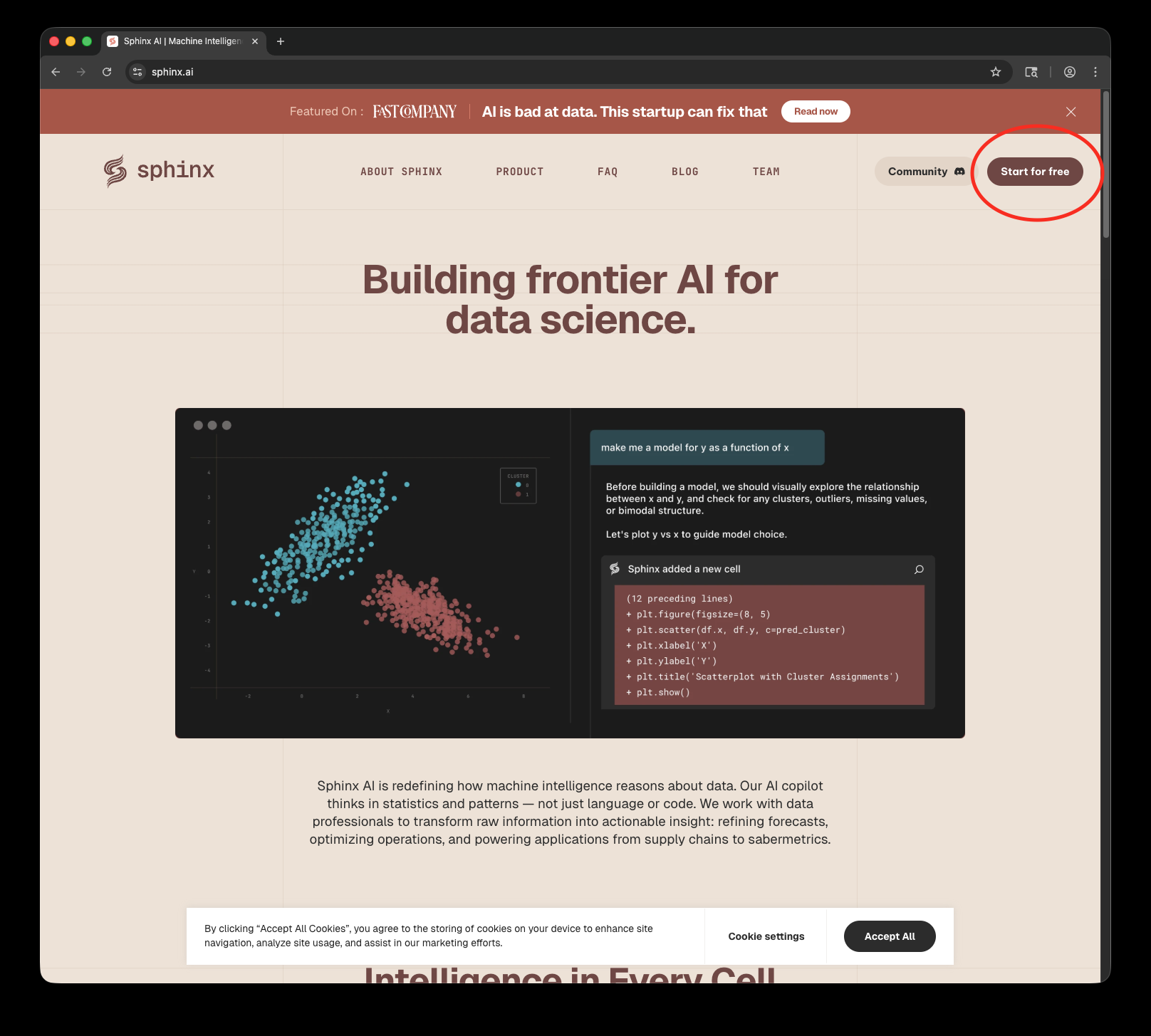
    Navigate to [sphinx.ai](https://www.sphinx.ai) and click **Start for free**.

    <Frame>
      <img src="https://mintcdn.com/sphinx-977f1673/HOFMp6F-lL9BPmA7/quickstart-resources/start-for-free.png?fit=max&auto=format&n=HOFMp6F-lL9BPmA7&q=85&s=b6d6ab12f93660aa4862de3b4b0fd4bb" alt="Sphinx homepage with Start for free button" width="1616" height="1455" data-path="quickstart-resources/start-for-free.png" />
    </Frame>

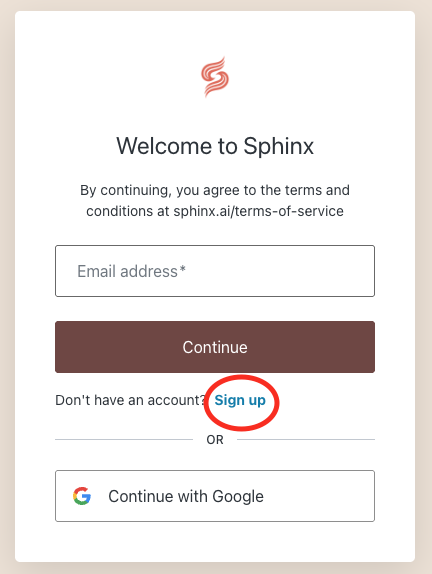
    Complete the sign-up process to create your account.

    <Frame>
      <img src="https://mintcdn.com/sphinx-977f1673/HOFMp6F-lL9BPmA7/quickstart-resources/sign-up.png?fit=max&auto=format&n=HOFMp6F-lL9BPmA7&q=85&s=6ab0faa399ceb556abfa21ae8409625f" alt="Sphinx sign up form" width="432" height="574" data-path="quickstart-resources/sign-up.png" />
    </Frame>
  </Step>

  <Step title="Install Sphinx">
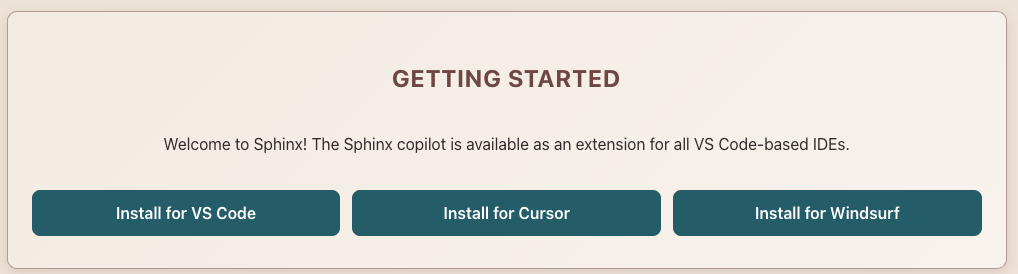
    Navigate to the [dashboard](https://dashboard.prod.sphinx.ai/) and install Sphinx into your IDE of choice.

    <Frame>
      <img src="https://mintcdn.com/sphinx-977f1673/HOFMp6F-lL9BPmA7/quickstart-resources/install-sphinx.png?fit=max&auto=format&n=HOFMp6F-lL9BPmA7&q=85&s=3de9d33e5723676c1fd56afdb5570bad" alt="Sphinx installation options for different IDEs" width="1018" height="274" data-path="quickstart-resources/install-sphinx.png" />
    </Frame>
  </Step>

  <Step title="Set up the quickstart project">
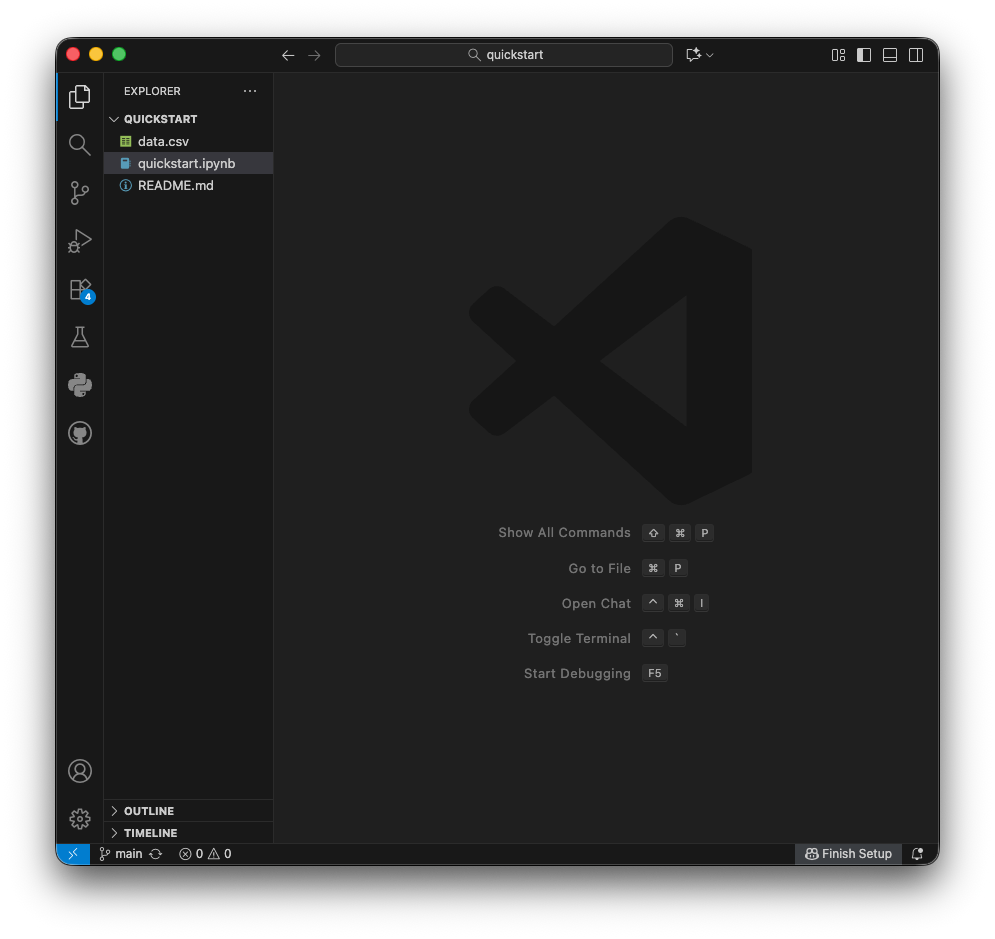
    Clone and open [the quickstart GitHub repository](https://github.com/sphinx-ml/quickstart) in your IDE.

    <Frame>
      <img src="https://mintcdn.com/sphinx-977f1673/HOFMp6F-lL9BPmA7/quickstart-resources/ide-opened.png?fit=max&auto=format&n=HOFMp6F-lL9BPmA7&q=85&s=f5a389031bfd2b19291087667b04de69" alt="Quickstart project opened in IDE" width="995" height="939" data-path="quickstart-resources/ide-opened.png" />
    </Frame>
  </Step>

  <Step title="Launch Sphinx">
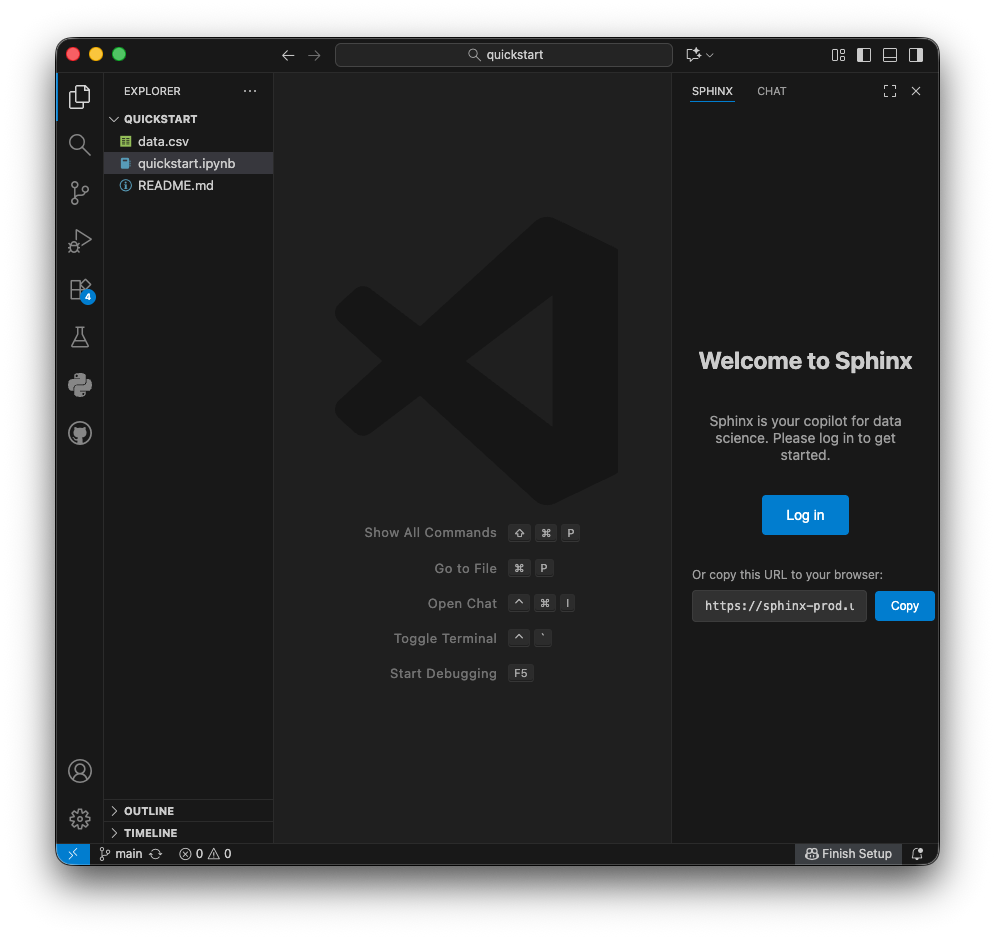
    Open Sphinx using the keyboard shortcut:

    * **Mac**: `⌘ + T`
    * **Windows/Linux**: `Ctrl + T`

    <Frame>
      <img src="https://mintcdn.com/sphinx-977f1673/HOFMp6F-lL9BPmA7/quickstart-resources/sphinx-open.png?fit=max&auto=format&n=HOFMp6F-lL9BPmA7&q=85&s=010da91be369d594bc40ebc68c847b79" alt="Sphinx interface opened in IDE" width="995" height="939" data-path="quickstart-resources/sphinx-open.png" />
    </Frame>

    Log in with your Sphinx account credentials.
  </Step>

  <Step title="Open the notebook">
    Navigate to and open `quickstart.ipynb` in your IDE.

    <Frame caption="Opening the quickstart notebook">
      <video controls>
        <source src="https://mintcdn.com/sphinx-977f1673/HOFMp6F-lL9BPmA7/quickstart-resources/opening-up-notebook.mp4?fit=max&auto=format&n=HOFMp6F-lL9BPmA7&q=85&s=b1b231fe59c1eba3059a57d1413cbb4f" type="video/mp4" data-path="quickstart-resources/opening-up-notebook.mp4" />
      </video>
    </Frame>
  </Step>

  <Step title="Run your first analysis">
    Ask Sphinx: **"What distribution does data.csv follow?"**

    Watch as Sphinx analyzes the data and provides insights.

    <Frame caption="Sphinx analyzing the data distribution">
      <video controls>
        <source src="https://mintcdn.com/sphinx-977f1673/HOFMp6F-lL9BPmA7/quickstart-resources/bimodal.mp4?fit=max&auto=format&n=HOFMp6F-lL9BPmA7&q=85&s=9e08b655a78cec7e1f38c1345ce9da50" type="video/mp4" data-path="quickstart-resources/bimodal.mp4" />
      </video>
    </Frame>
  </Step>
</Steps>

<Check>
  Congratulations! You've successfully set up Sphinx and run your first AI-powered data analysis.
</Check>

## Next steps

<CardGroup cols={2}>
  <Card title="Guardrails" icon="shield-halved" href="/guardrails">
    Learn how to control what code Sphinx generates and executes.
  </Card>

  <Card title="Integrations" icon="plug" href="/integrations">
    Connect your data warehouses to analyze production data.
  </Card>
</CardGroup>