> ## Documentation Index
> Fetch the complete documentation index at: https://docs.sphinx.ai/llms.txt
> Use this file to discover all available pages before exploring further.

# Setup ChatGPT Desktop LLM Gateway

> Install ChatGPT for Windows and connect it to the Sphinx LLM Gateway.

Connect the ChatGPT desktop app for Windows to the Sphinx LLM Gateway.

## Prerequisites

Before you begin, make sure you have:

* A Windows computer
* Your Sphinx API token
* Permission to install applications and approve a Windows User Account Control prompt

## Install the Sphinx LLM Gateway

<Steps>
  <Step title="Download ChatGPT for Windows">
    Go to [chatgpt.com/download](https://chatgpt.com/download/) and download the ChatGPT desktop app for Windows.
  </Step>

  <Step title="Download the Sphinx LLM Gateway installer">
    Open the [Sphinx LLM Gateway installer in Google Drive](https://drive.google.com/file/d/1Ru-qEO6kxqLNc1QZMBoijGhtiaZES536/view?usp=sharing), then click **Download**.
  </Step>

  <Step title="Run the gateway installer">
    Open your downloads and double-click the downloaded `.exe` file.
  </Step>

  <Step title="Allow the installer to run">
    If Microsoft Defender SmartScreen displays **Windows protected your PC**, click **More info**.
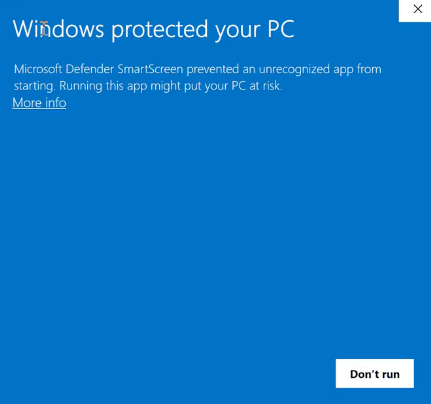
    <Frame caption="Microsoft Defender SmartScreen warning with the More info link">
      <img src="https://mintcdn.com/sphinx-977f1673/vsMi2HLtxprLrDST/chatgpt-desktop/windows-protected-pc.png?fit=max&auto=format&n=vsMi2HLtxprLrDST&q=85&s=4e52fd582998a24348a6dc3439088e34" alt="Windows protected your PC warning showing the More info link" width="431" height="404" data-path="chatgpt-desktop/windows-protected-pc.png" />
    </Frame>

    Confirm that the app is **Codex Sphinx LLM Gateway Setup.exe**, then click **Run anyway**.
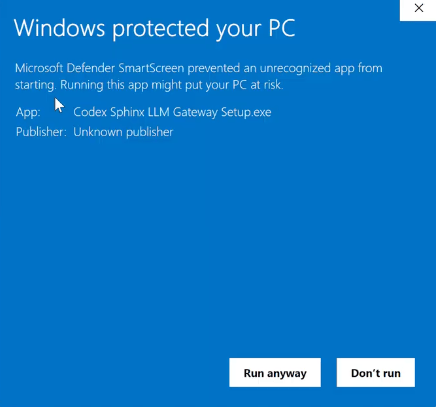
    <Frame caption="Run the Codex Sphinx LLM Gateway installer">
      <img src="https://mintcdn.com/sphinx-977f1673/vsMi2HLtxprLrDST/chatgpt-desktop/run-anyway.png?fit=max&auto=format&n=vsMi2HLtxprLrDST&q=85&s=fd03c5276036357386a16f60f400f635" alt="Windows protected your PC warning showing Codex Sphinx LLM Gateway Setup.exe and the Run anyway button" width="436" height="407" data-path="chatgpt-desktop/run-anyway.png" />
    </Frame>

    <Warning>
      Windows may list the publisher as unknown. Continue only if you downloaded the installer from the Google Drive link above.
    </Warning>
  </Step>

  <Step title="Complete the setup wizard">
    On the welcome screen, click **Next**.
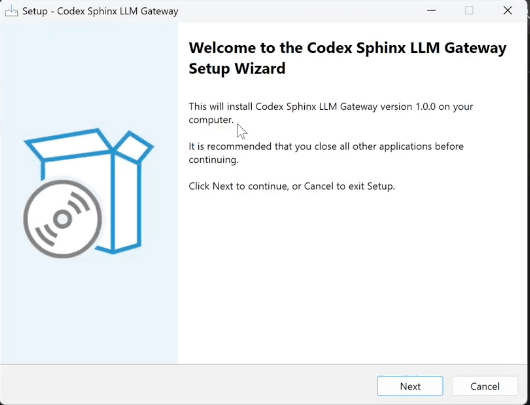
    <Frame caption="Codex Sphinx LLM Gateway setup wizard">
      <img src="https://mintcdn.com/sphinx-977f1673/vsMi2HLtxprLrDST/chatgpt-desktop/gateway-setup-welcome.png?fit=max&auto=format&n=vsMi2HLtxprLrDST&q=85&s=e4eefd5bfc0ca5a4f61915fa46f8562a" alt="Welcome screen for the Codex Sphinx LLM Gateway setup wizard" width="530" height="405" data-path="chatgpt-desktop/gateway-setup-welcome.png" />
    </Frame>

    Enter your Sphinx API token, then click **Next**.
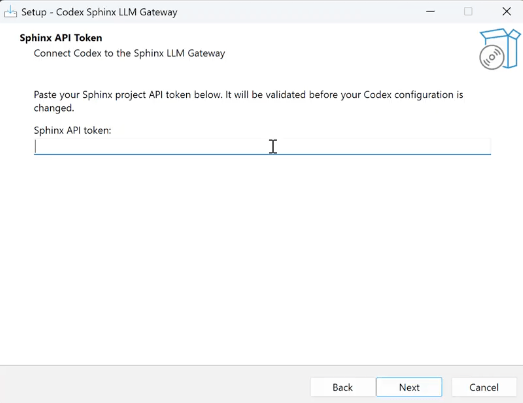
    <Frame caption="Enter your Sphinx API token">
      <img src="https://mintcdn.com/sphinx-977f1673/vsMi2HLtxprLrDST/chatgpt-desktop/enter-api-token.png?fit=max&auto=format&n=vsMi2HLtxprLrDST&q=85&s=a409ac67ccb694fdf4802c225b7b50be" alt="Codex Sphinx LLM Gateway setup wizard with a field for the Sphinx API token" width="523" height="403" data-path="chatgpt-desktop/enter-api-token.png" />
    </Frame>

    When the installer is ready, click **Install**.
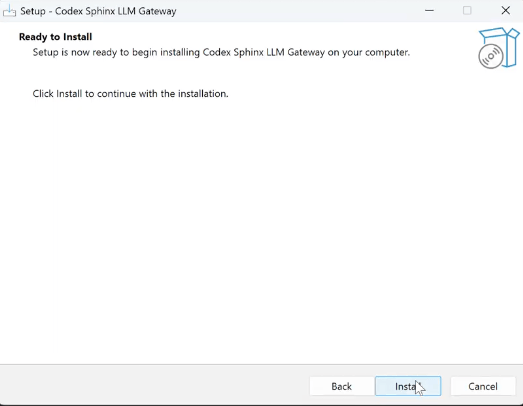
    <Frame caption="Install the Codex Sphinx LLM Gateway">
      <img src="https://mintcdn.com/sphinx-977f1673/vsMi2HLtxprLrDST/chatgpt-desktop/ready-to-install.png?fit=max&auto=format&n=vsMi2HLtxprLrDST&q=85&s=cd98a7d75549942efba720e23766557d" alt="Codex Sphinx LLM Gateway setup wizard showing the Install button" width="523" height="406" data-path="chatgpt-desktop/ready-to-install.png" />
    </Frame>

    After the installation completes, click **Finish**.
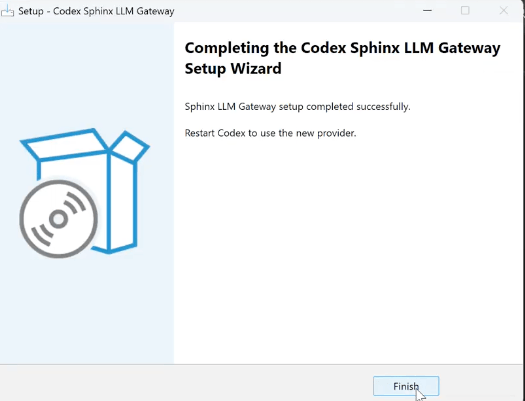
    <Frame caption="Complete the Codex Sphinx LLM Gateway setup wizard">
      <img src="https://mintcdn.com/sphinx-977f1673/vsMi2HLtxprLrDST/chatgpt-desktop/setup-complete.png?fit=max&auto=format&n=vsMi2HLtxprLrDST&q=85&s=fd404788bc5cfdb06c61e1be435eaa08" alt="Successful Codex Sphinx LLM Gateway installation with the Finish button" width="525" height="401" data-path="chatgpt-desktop/setup-complete.png" />
    </Frame>

    <Warning>
      Keep your API token private. Do not share it or include it in screenshots.
    </Warning>
  </Step>

  <Step title="Start ChatGPT">
    Launch the ChatGPT desktop app and complete the introductory prompts.
  </Step>

  <Step title="Finish Windows setup">
    When ChatGPT asks for one-time permission to work on your computer, click **Finish setup**. In the Windows User Account Control prompt, click **Yes**.
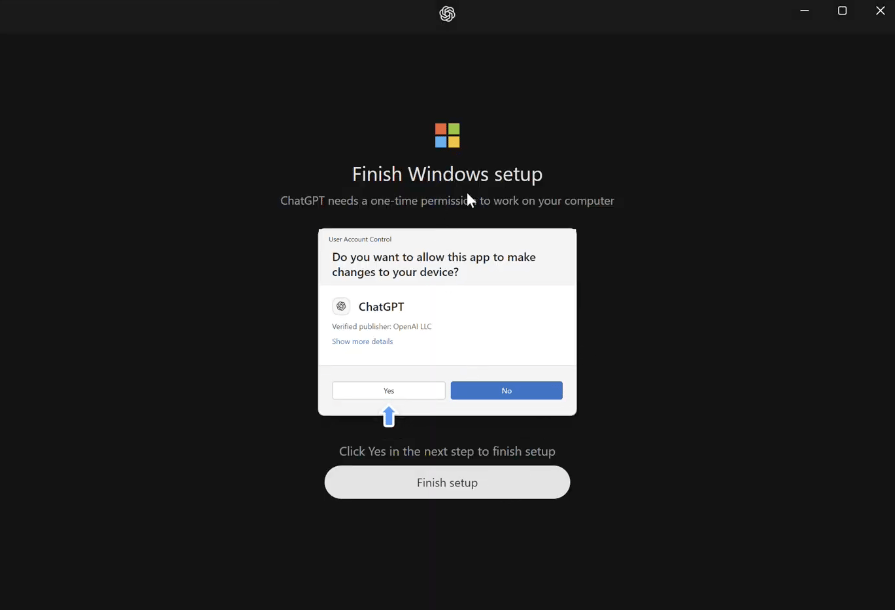
    <Frame caption="Grant ChatGPT one-time permission to finish Windows setup">
      <img src="https://mintcdn.com/sphinx-977f1673/vsMi2HLtxprLrDST/chatgpt-desktop/finish-windows-setup.png?fit=max&auto=format&n=vsMi2HLtxprLrDST&q=85&s=83916581cb0db0ed42eaae1e7a8fe56e" alt="ChatGPT Finish Windows setup screen with a User Account Control prompt and instructions to click Yes" width="895" height="610" data-path="chatgpt-desktop/finish-windows-setup.png" />
    </Frame>
  </Step>
</Steps>

## Verify the connection

After setup, ChatGPT opens to the main chat page. Confirm that **Sphinx Gateway** appears in the bottom-left corner.
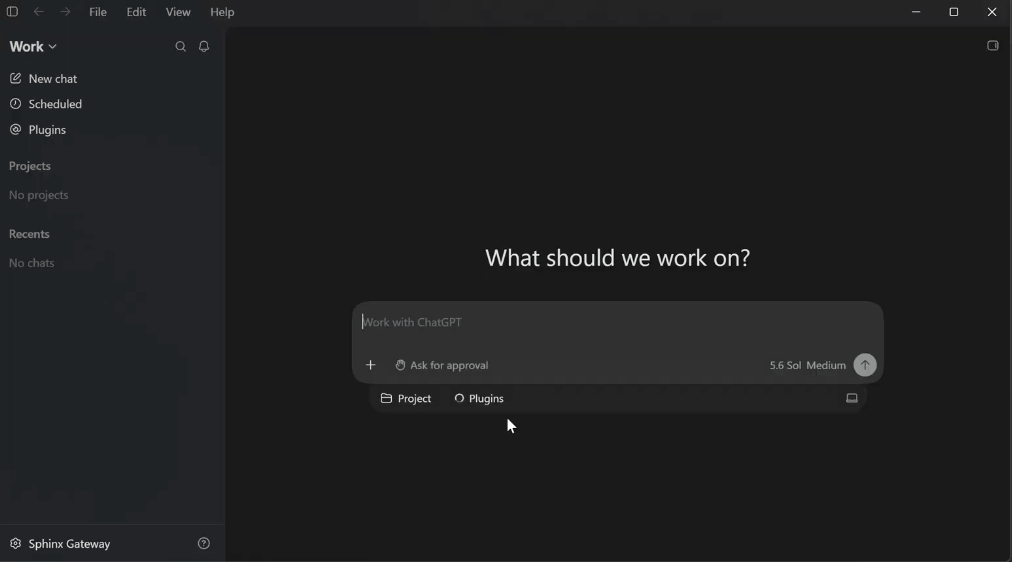
<Frame caption="ChatGPT connected to the Sphinx Gateway">
  <img src="https://mintcdn.com/sphinx-977f1673/vsMi2HLtxprLrDST/chatgpt-desktop/sphinx-gateway-chat.png?fit=max&auto=format&n=vsMi2HLtxprLrDST&q=85&s=f182579524c0aed6d05868c0b490784d" alt="ChatGPT main chat page showing Sphinx Gateway in the bottom-left corner" width="1012" height="562" data-path="chatgpt-desktop/sphinx-gateway-chat.png" />
</Frame>

<Check>
  You can now start a chat using the Sphinx LLM Gateway.
</Check>
