> ## Documentation Index
> Fetch the complete documentation index at: https://docs.sphinx.ai/llms.txt
> Use this file to discover all available pages before exploring further.

# Install Sphinx MCP in ChatGPT Desktop

> Connect ChatGPT Desktop to the Sphinx MCP server and authorize access to your workspace.

Connect ChatGPT Desktop to Sphinx so you can use Sphinx tools in your chats.

## Prerequisites

Before you begin, make sure you have:

* The latest version of ChatGPT Desktop
* A Sphinx account with access to a workspace

## Add the Sphinx MCP server

<Steps>
  <Step title="Open Settings">
    In ChatGPT Desktop, open the account menu in the bottom-left corner and click **Settings**.
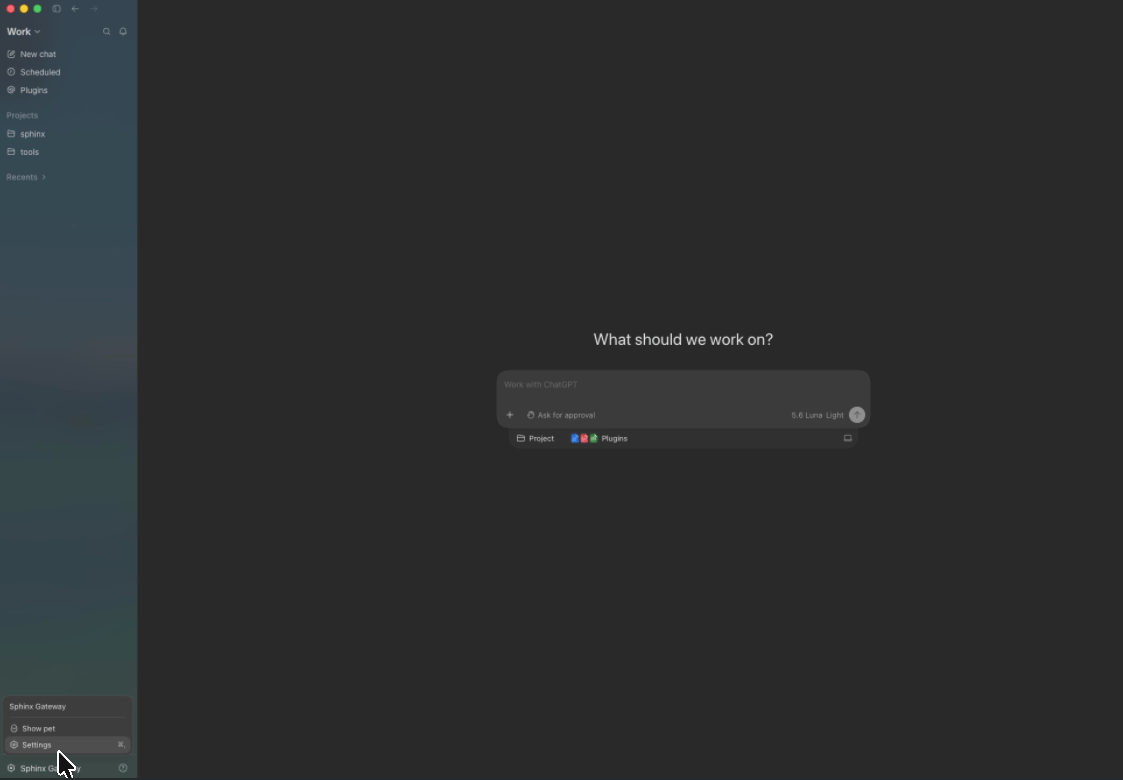
    <Frame caption="Open Settings from the ChatGPT Desktop account menu">
      <img src="https://mintcdn.com/sphinx-977f1673/LJumyZXT_10Y9zpi/chatgpt-desktop/open-settings.png?fit=max&auto=format&n=LJumyZXT_10Y9zpi&q=85&s=752ed919cb1145471c2b6a54765b795d" alt="ChatGPT Desktop account menu with the Settings option highlighted" width="1123" height="780" data-path="chatgpt-desktop/open-settings.png" />
    </Frame>
  </Step>

  <Step title="Open Plugins">
    In the Settings sidebar, click **Plugins**.
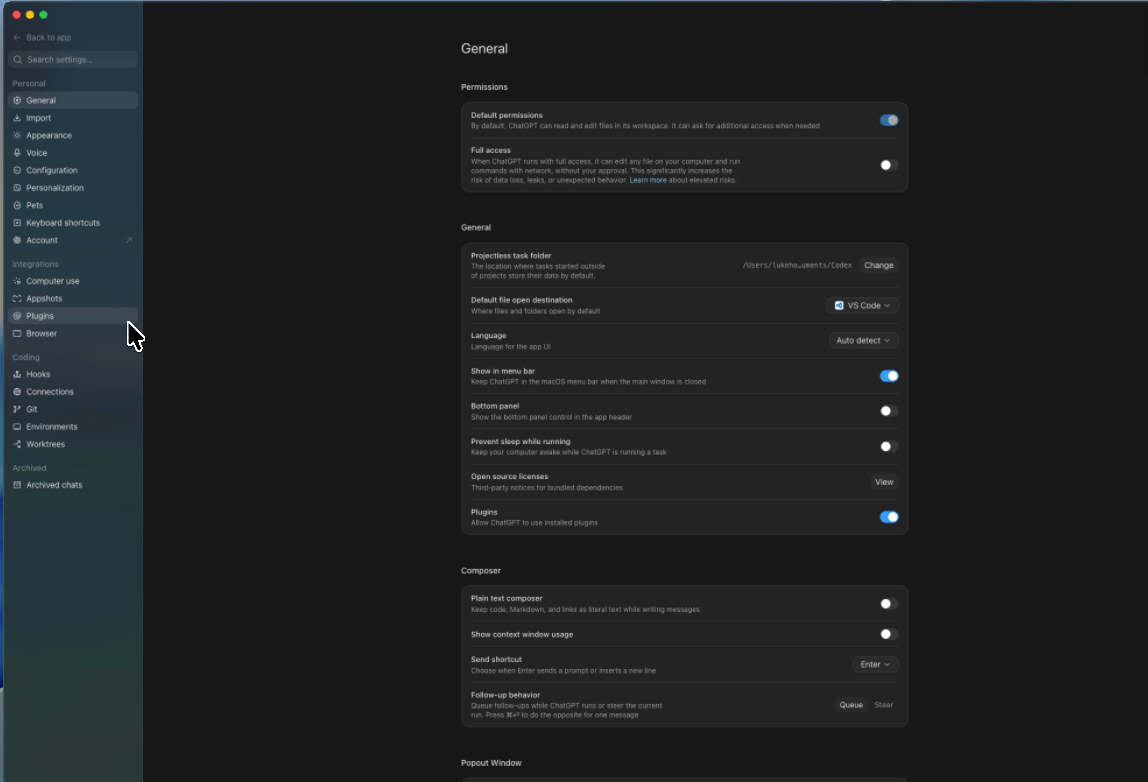
    <Frame caption="Open the Plugins settings page">
      <img src="https://mintcdn.com/sphinx-977f1673/LJumyZXT_10Y9zpi/chatgpt-desktop/open-plugins-settings.png?fit=max&auto=format&n=LJumyZXT_10Y9zpi&q=85&s=751caa69dd496814def1c02c9ebd97a5" alt="ChatGPT Desktop Settings with Plugins highlighted in the sidebar" width="1148" height="782" data-path="chatgpt-desktop/open-plugins-settings.png" />
    </Frame>
  </Step>

  <Step title="Add an MCP server">
    Click **Add**, then select **Add MCP server**.
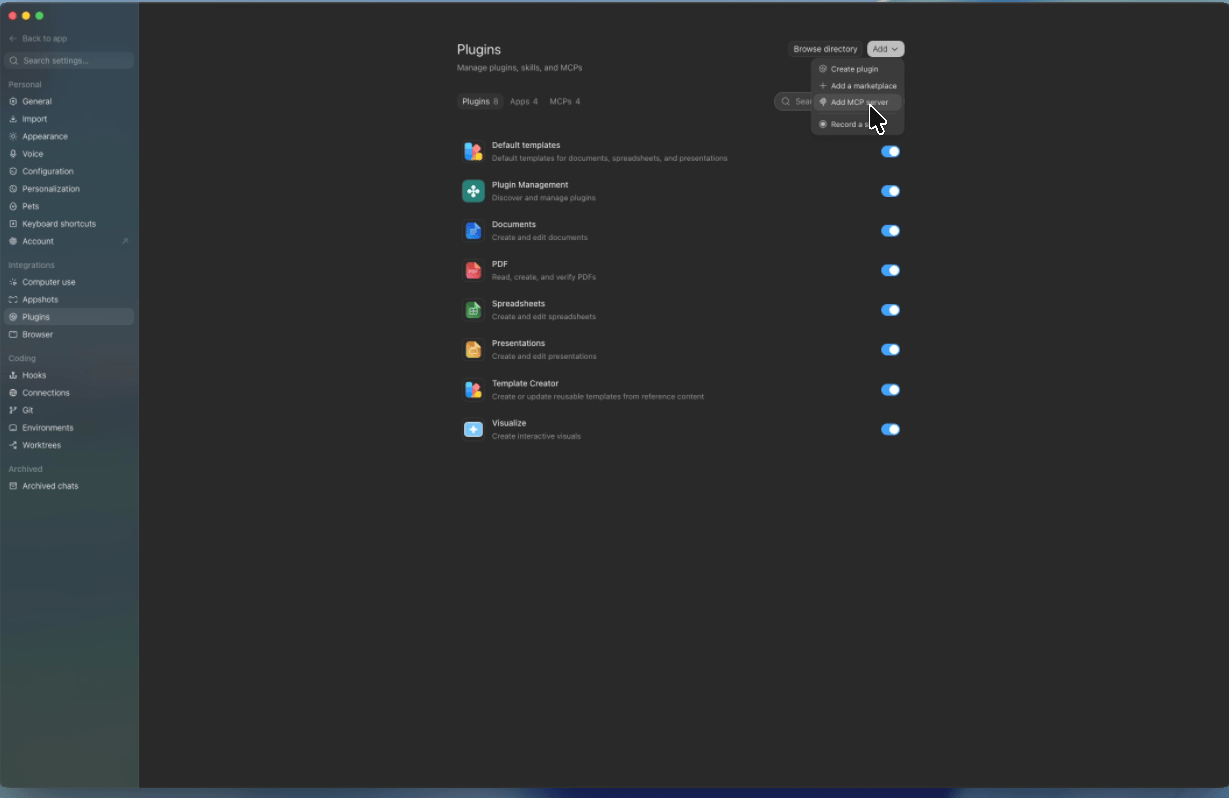
    <Frame caption="Add a custom MCP server from the Plugins page">
      <img src="https://mintcdn.com/sphinx-977f1673/LJumyZXT_10Y9zpi/chatgpt-desktop/add-mcp-server.png?fit=max&auto=format&n=LJumyZXT_10Y9zpi&q=85&s=b281bb6361576ea689717f813c7d2513" alt="ChatGPT Desktop Plugins page with Add MCP server selected in the Add menu" width="1229" height="798" data-path="chatgpt-desktop/add-mcp-server.png" />
    </Frame>
  </Step>

  <Step title="Configure the Sphinx MCP server">
    Complete the form with the following values:

    | Field    | Value                            |
    | -------- | -------------------------------- |
    | **Name** | `sphinx`                         |
    | **Type** | **Streamable HTTP**              |
    | **URL**  | `https://api.prod.sphinx.ai/mcp` |

    Leave the remaining fields blank, then click **Save**.
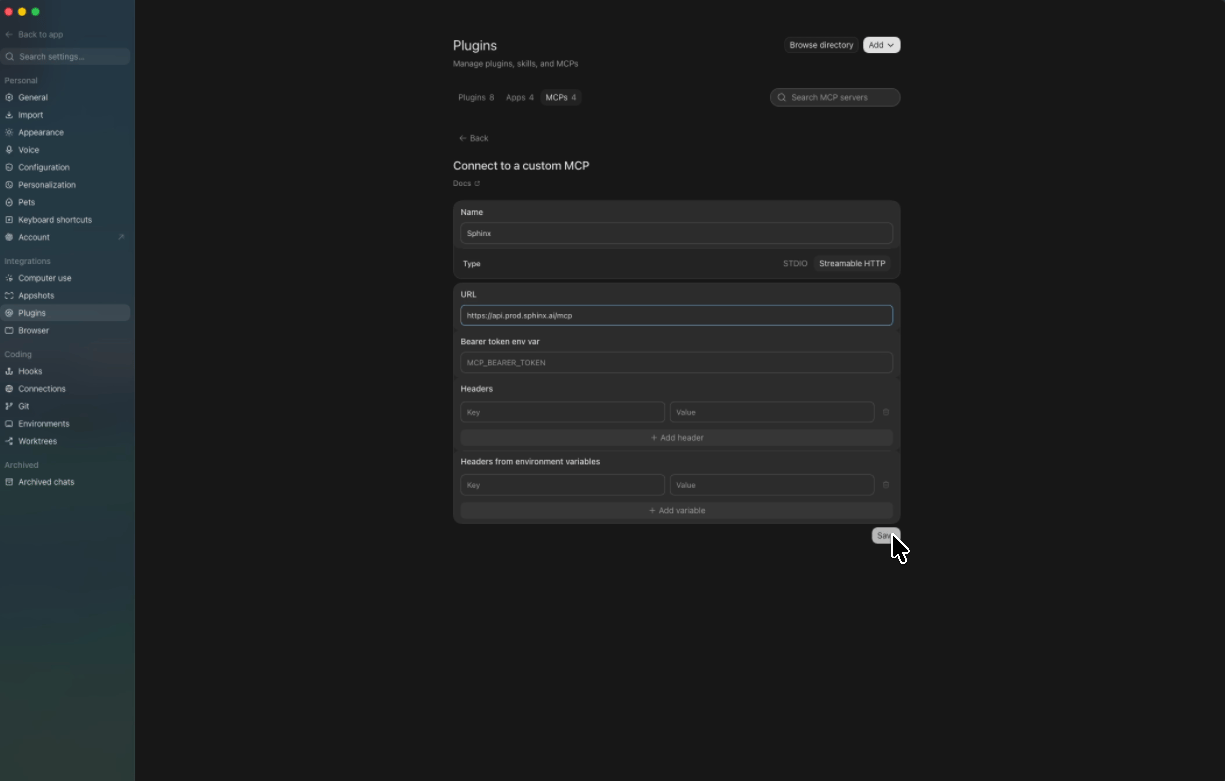
    <Frame caption="Configure the Sphinx MCP server connection">
      <img src="https://mintcdn.com/sphinx-977f1673/LJumyZXT_10Y9zpi/chatgpt-desktop/configure-sphinx-mcp.png?fit=max&auto=format&n=LJumyZXT_10Y9zpi&q=85&s=eaef7c140fa757ed50ed730a195556f6" alt="Custom MCP server form configured with the Sphinx name, Streamable HTTP type, and Sphinx MCP URL" width="1225" height="781" data-path="chatgpt-desktop/configure-sphinx-mcp.png" />
    </Frame>
  </Step>

  <Step title="Authenticate with Sphinx">
    Open the **MCPs** tab on the Plugins page, find **sphinx**, and click **Authenticate**. ChatGPT opens the Sphinx authorization page in your browser.
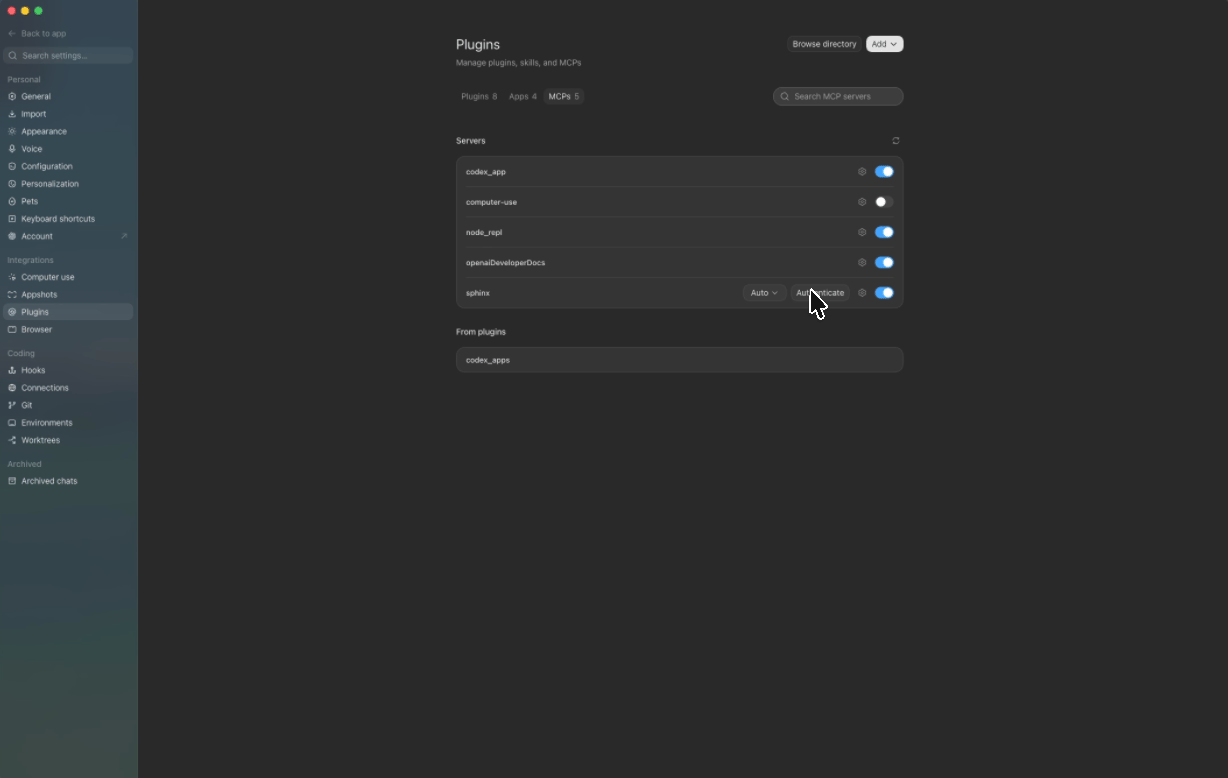
    <Frame caption="Authenticate the Sphinx MCP server">
      <img src="https://mintcdn.com/sphinx-977f1673/LJumyZXT_10Y9zpi/chatgpt-desktop/authenticate-sphinx-mcp.png?fit=max&auto=format&n=LJumyZXT_10Y9zpi&q=85&s=3f9e1978e14a958f6a5bfdbd9e45858e" alt="MCPs tab on the ChatGPT Desktop Plugins page showing the Authenticate button for sphinx" width="1228" height="778" data-path="chatgpt-desktop/authenticate-sphinx-mcp.png" />
    </Frame>
  </Step>

  <Step title="Allow access to your workspace">
    On the authorization page, select the Sphinx workspace you want to connect, then click **Allow access**.
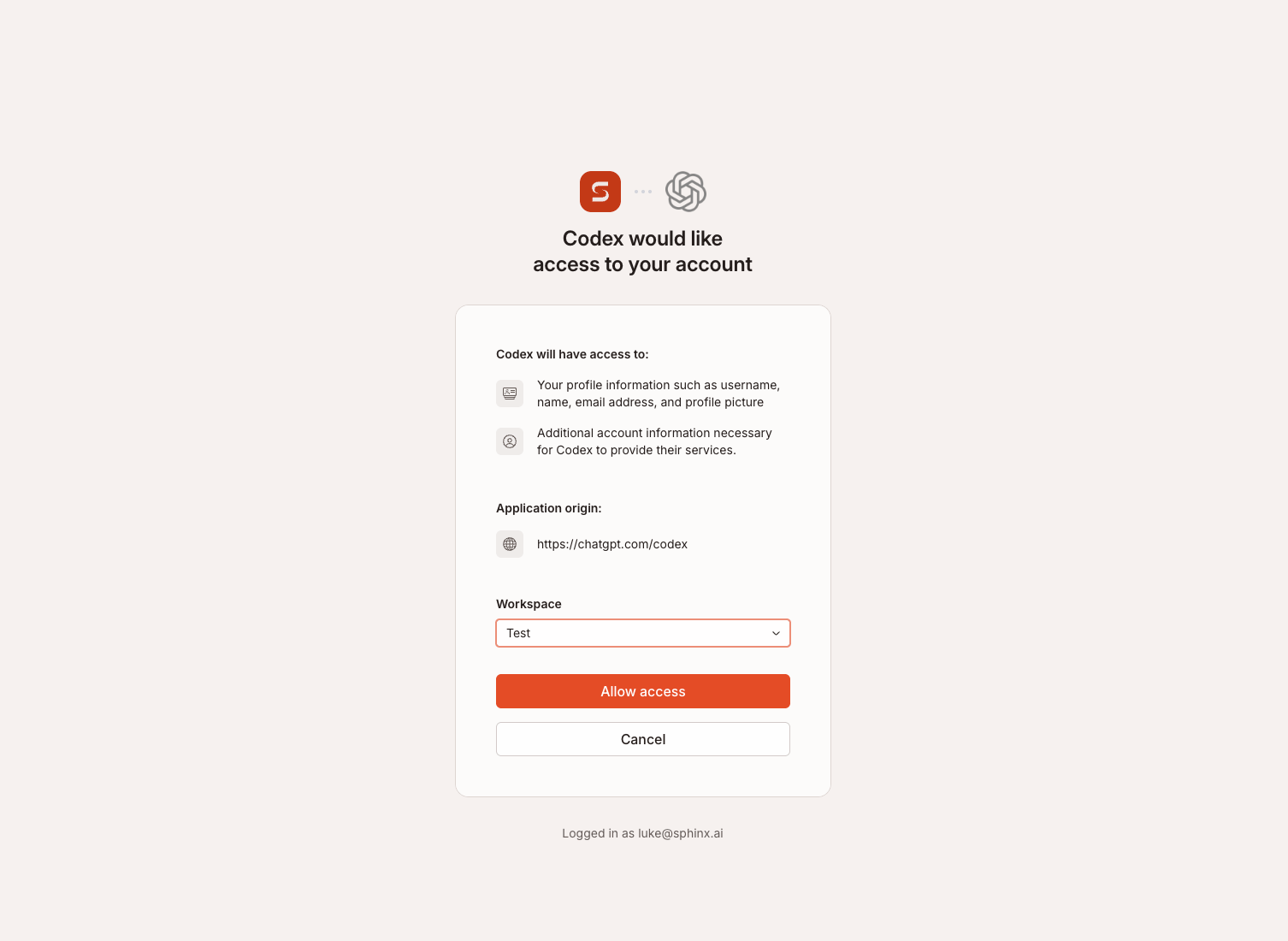
    <Frame caption="Authorize ChatGPT Desktop to access a Sphinx workspace">
      <img src="https://mintcdn.com/sphinx-977f1673/LJumyZXT_10Y9zpi/chatgpt-desktop/authorize-sphinx-mcp.png?fit=max&auto=format&n=LJumyZXT_10Y9zpi&q=85&s=de2d56d453c32c5564f6ecf585221dd5" alt="Sphinx authorization page with a workspace selector and Allow access button" width="1506" height="1100" data-path="chatgpt-desktop/authorize-sphinx-mcp.png" />
    </Frame>
  </Step>
</Steps>

<Check>
  The Sphinx MCP server is now connected and ready to use in ChatGPT Desktop.
</Check>
